How to Extract All Images from a PDF Document at Original Quality
Pull out all photos, charts, and embedded graphics from PDF files without loss of quality. View gallery, download individually, or save all as a ZIP file.

PDF files frequently act as digital vaults locking up valuable original photos, architectural renderings, corporate brand logos, infographics, and research charts. When users need to retrieve these images, they often resort to taking desktop screenshots—resulting in low-resolution, clipped images with wrong aspect ratios and lost transparent backgrounds.
With the Extract Images from PDF Tool on ShobFree, you can inspect any PDF file and extract all embedded photos, diagrams, and illustrations at their native, uncompressed original resolution. You can preview the extracted images in a responsive visual gallery and download pictures individually or as a single ZIP archive.
Quick answer
| Job | Feature | Output |
|---|---|---|
| Retrieve raw photos & logos | Deep Stream Scan | Original JPEG/PNG bitstream without recompression |
| Download all illustrations | Bulk ZIP Export | All images collected into a convenient .zip file |
| Multi-page document scan | Page-by-page inspection | High-resolution visual gallery with dimensions & file sizes |
| Confidential documents | 100% Client-side sandbox | Zero server upload, total document privacy |
Step-by-step: How to extract images from a PDF
- Open the Extract Images from PDF tool.
- Click Choose PDF Document or drag and drop your PDF into the upload area.
- Click the Extract Images button.
- The dual-engine extractor scans both direct image object dictionaries (
/Subtype /Image) for native JPEGs and document pages for vector illustrations. - Browse the interactive gallery showing extracted image previews, exact pixel dimensions (e.g. 1920×1080), and file sizes.
- Click Save Image beneath any picture to download it directly, or click Download All as ZIP to receive a structured archive containing every extracted file.
Why direct extraction is superior to taking screenshots
| Method | Resolution | Color Accuracy | Transparency | Effort |
|---|---|---|---|---|
| ShobFree Direct Extraction | Original (Up to 4K / 300 DPI) | 100% Unaltered Bitstream | Alpha Channel Preserved | 1 Click for all pages |
| Manual Screenshot | Limited to monitor screen (72–96 DPI) | Resampled & Compressed | Flattened white background | Manual page-by-page clipping |
Practical applications
- Graphic Designers & Marketing Teams: Recover high-resolution brand assets, vector graphics, and photography from legacy PDF presentations and marketing brochures when original source files are unavailable.
- Researchers & Scientists: Extract high-resolution microscopy images, figures, and plots from academic publications and whitepapers.
- Real Estate & Construction: Extract crisp floorplans, architectural renders, and property photographs from contractor spec sheets.
Screenshots
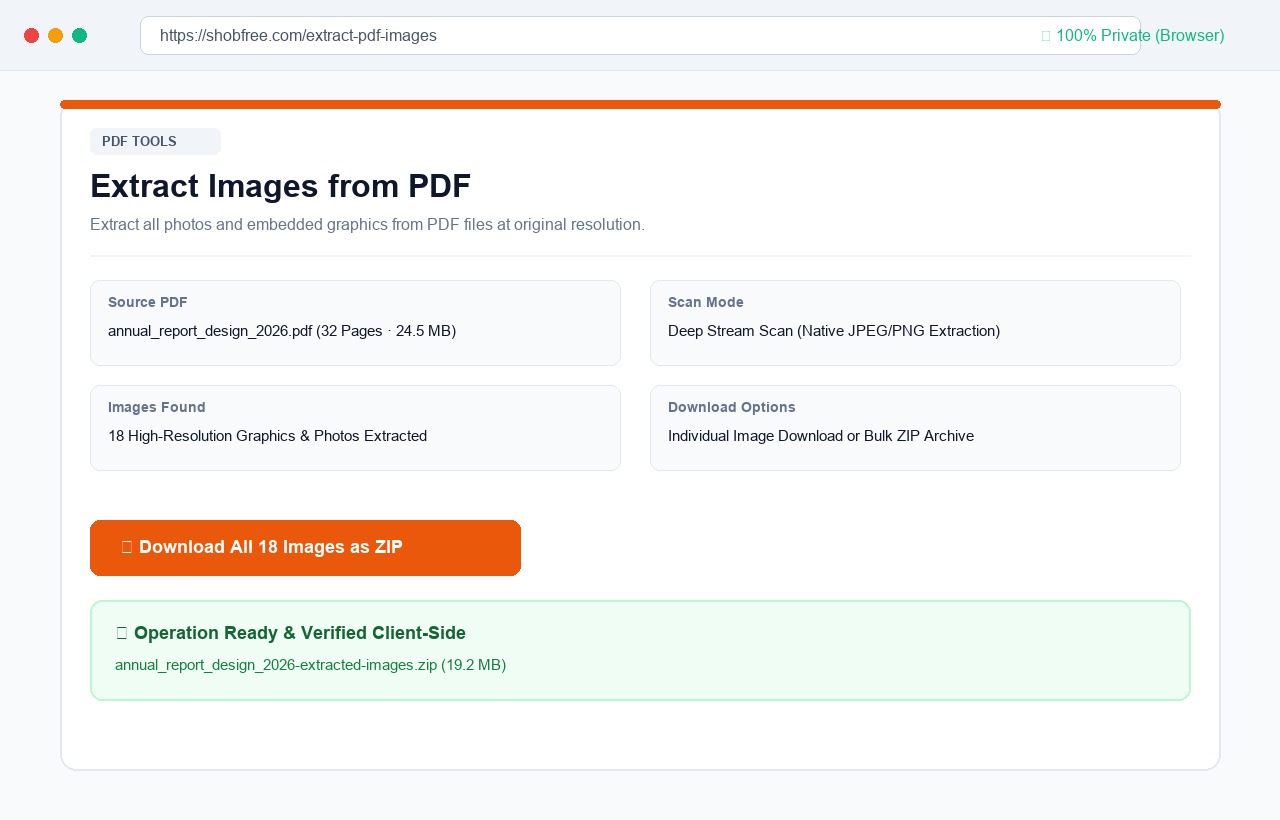 Extract Images from PDF: scan PDF pages, view gallery with pixel dimensions, download individual images or full ZIP.
Frequently asked questions
Are images re-compressed or degraded during extraction? No. Original embedded JPEG and PNG images are extracted directly from the PDF stream without recompression, preserving 100% of the native photographic quality.
Can I download all images at once? Yes. Click the Download All as ZIP button to pack every extracted picture into a single zip archive.
What happens if the PDF is password protected? If your PDF is encrypted, use our Unlock PDF tool first to decrypt the document, then proceed with image extraction.
Is my confidential PDF uploaded to a server? No. All scanning and image extraction occurs locally on your machine with complete client-side confidentiality.