
How to Use Word to Text Online: Free, Fast & Private Guide
Pull just the text out of a Word file into a plain .txt file.

Choose a Word file and get only its text, without formatting.
When dealing with everyday digital tasks, installing heavy desktop software or uploading sensitive personal files to unknown cloud servers creates friction, slows you down, and exposes your data. The Word to Text on ShobFree runs entirely inside your web browser, giving you instant, private, and accurate results without installing anything.
Quick answer
| Scenario | What You Do | Result |
|---|---|---|
| Standard Usage | Open Word to Text and enter your input | Instant, verified output |
| Mobile Access | Open in Safari, Chrome, or Firefox on mobile | Responsive touch-friendly experience |
| Data Privacy | Process your data directly in memory | 0 MB uploaded to any cloud server |
| File Export | Click the download or copy button | Save output directly to your device |
Step-by-step: How to use Word to Text
- Open the Word to Text tool on ShobFree.
- Enter your inputs, upload your file, or configure your preferences in the interactive controls.
- The tool performs all calculations or conversions in real time using client-side algorithms.
- Review your results on the screen or in the preview pane.
- Click the primary action button to save, copy, or download your verified result.
Key features and practical benefits
Use it when you need just the words, for pasting elsewhere or making a tiny file. Bangla text is saved as UTF-8.
Why in-browser processing is better
- Absolute Privacy: Your confidential personal documents, financial figures, and private media never travel across the internet. Everything is calculated in your browser's local sandbox.
- Instant Speed: There are no server upload delays or processing queues. Execution begins the instant you interact with the controls.
- Unlimited Free Access: You can use the tool as many times as you need without watermarks, trial timers, or registration paywalls.
Screenshots
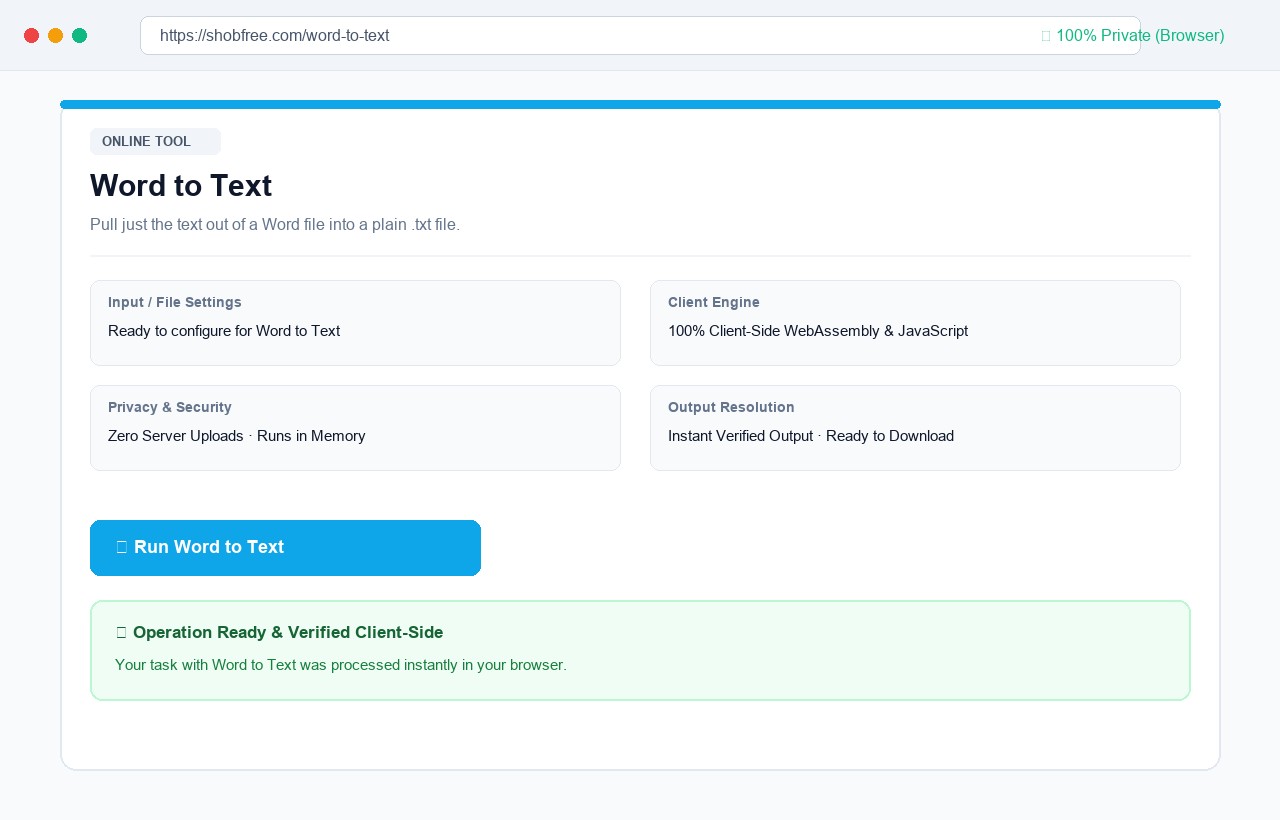 Word to Text: configure settings, preview results in real time, and download verified output in your browser.
Frequently asked questions
Are pictures and tables included? Pictures are not. The text in tables comes out in order.
Which encoding is used? UTF-8, which keeps Bangla intact.
Are tables kept? Table text is kept as plain text without the grid.
Which encoding is the text file? UTF-8, so Bangla and other scripts are kept.