How to Compare Two PDF Files and See What Changed
Compare two PDFs to find changed pages, added or removed words and visual differences, with a coloured overlay. Free and private in your browser.

Someone sends a revised contract and says "only small changes". How do you know? Reading both versions side by side is slow, and the changes that matter are often the smallest ones: a number, a date, a deleted clause. The free Compare PDF tool finds the differences for you, shows them in colour and lists the words that were added or removed.
Quick answer
Open Compare PDF, choose the old file as the first and the new file as the second. The tool tells you how many pages differ and shows red and green marks where they differ.
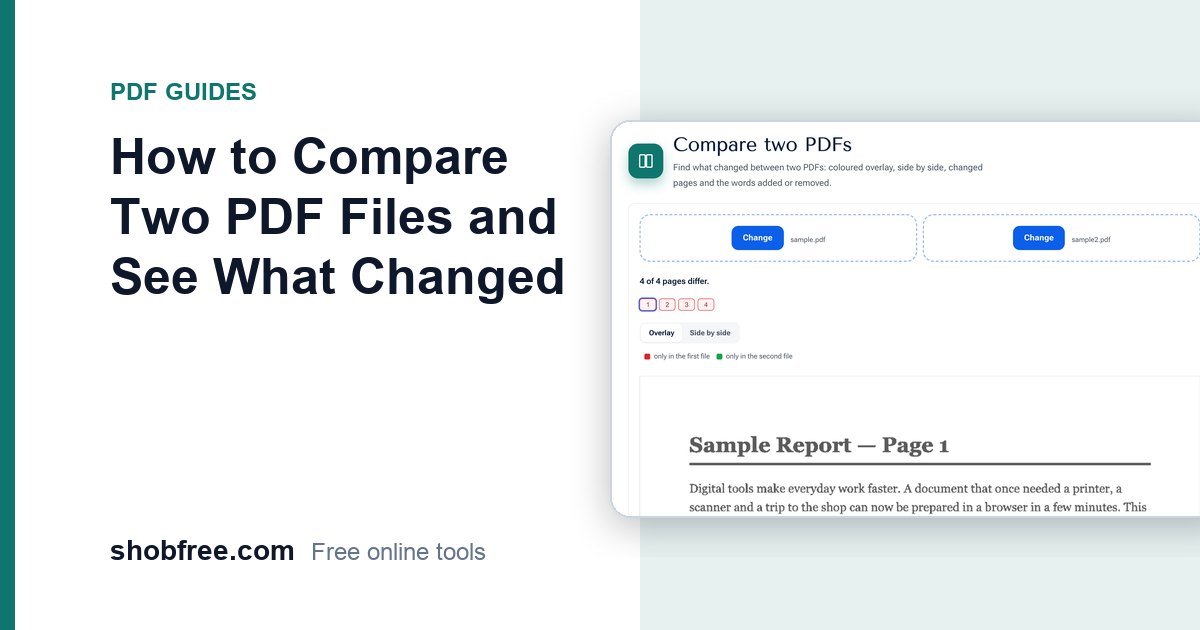
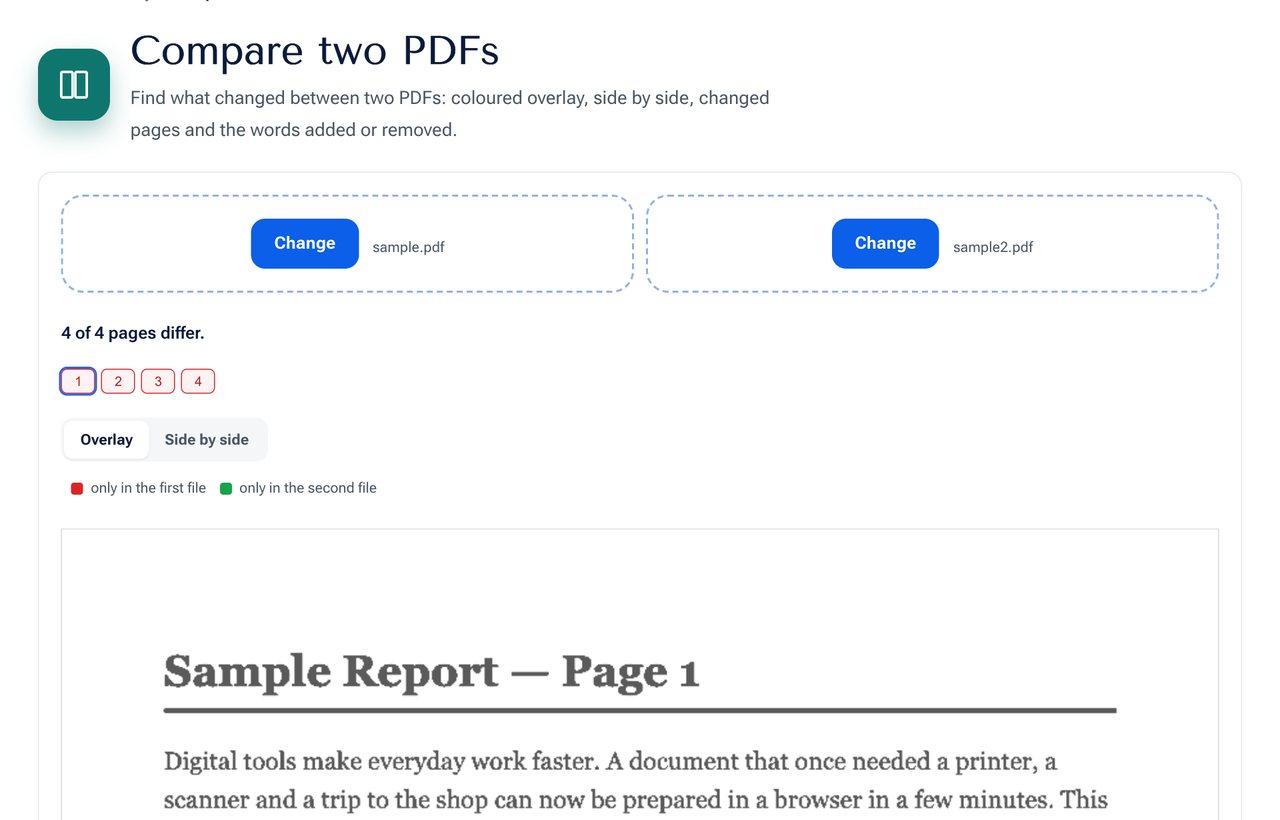 The Compare PDF tool: changed pages are marked and the differences shown in colour.
How to read the result
- Summary line: for example "4 of 4 pages differ".
- Page buttons: pages with changes are outlined in red. Click a number to see that page.
- Overlay view: black is the same in both. Red is only in the first file. Green is only in the second file.
- Side by side: shows the two pages next to each other.
- Words removed and added: a list of words that are in only one version, for each page.
Step by step
- Open the tool.
- Choose the first PDF (the original or older version).
- Choose the second PDF (the changed or newer version).
- Wait while the pages are compared. A long file takes longer.
- Click the pages marked in red and look at the colours.
- Read the added and removed words under the page.
What it is good at
- Finding a changed amount, date or name.
- Spotting a paragraph that was deleted or added.
- Checking that a corrected file really fixes what you asked for.
- Comparing a scanned version with the original, in the overlay view.
Things to keep in mind
- A small shift can mark a whole page. If a new line pushes everything down, the overlay will show many differences. Use the word lists to see what really changed.
- Fonts and layout matter. The pixel overlay compares appearance, so a font change appears as a difference even if the words are the same.
- Scanned files have no text. The overlay still works, but the word lists will be empty. Run OCR PDF to get text first.
- Different page counts are fine. Extra pages in one file are marked as present in only one version.
Tips for contracts and reports
- Always put the older version first, so red means "removed" and green means "added".
- Read the word list for numbers and dates first, as these are the most important changes.
- Keep a record: take screenshots of the changed pages for your own file.
- If a change is not acceptable, quote the page number and words when you reply.
Privacy
Both files are compared in your browser. They are not uploaded, which matters for contracts and private records.
Frequently asked questions
Can I compare a PDF with a Word file? Convert the Word file to PDF first with Word to PDF, then compare.
Does it show changes in images? Yes in the overlay view, as coloured areas.
Is there a file size limit? Large files depend on your device's memory. Compare the important parts by extracting pages first.
Does it work if the order of pages changed? Pages are compared by number. Reorder the pages first with Organize PDF if needed.
Next step
Open Compare PDF and check your two versions.