How to Extract Pages from a PDF into a New File
Pick the pages you need on a thumbnail grid and save only those pages as a new PDF. Free, fast and private, with no upload.

Often you need only part of a PDF: one chapter of a book, the signature page of a contract, three pages from a 100-page report. Sending the whole file is slow, heavy and may expose things that are not meant to be shared. The free Extract PDF Pages tool lets you tick the pages you want and saves just those into a new file.
Quick answer
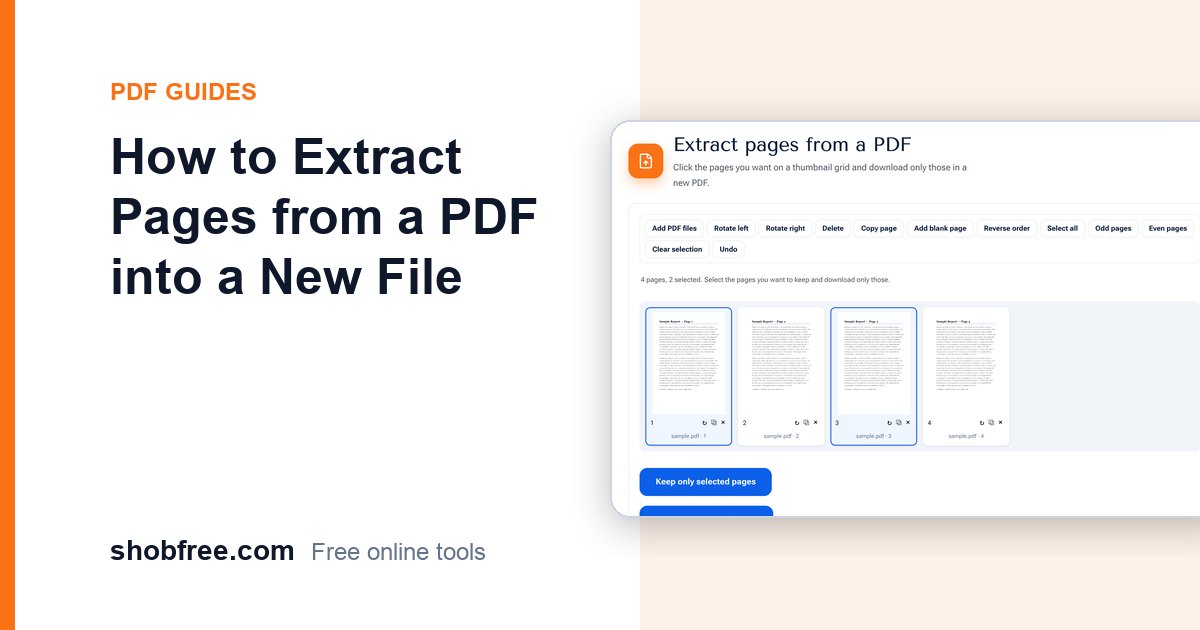
Open Extract PDF Pages, choose your file, click the pages you want on the thumbnail grid and press Download selected pages.
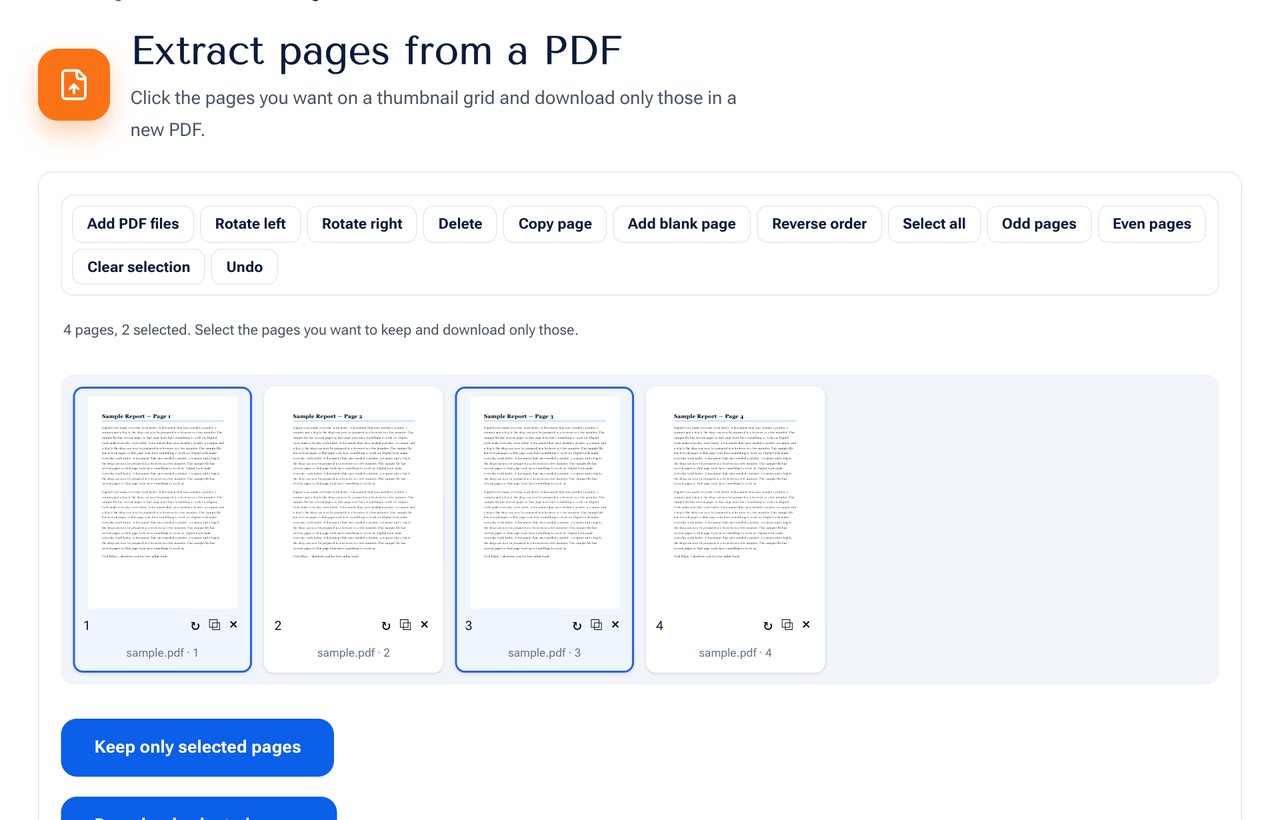 The Extract PDF Pages tool: click the pages to keep.
Step by step
- Open the tool and choose your PDF.
- Click the pages you want. Hold Shift to select a range such as pages 5 to 9.
- Press Download selected pages. The new file contains only those pages in their current order.
- If you want to keep working, press Keep only selected pages to remove all others from the grid first.
Ways to select pages quickly
- Range: click the first page, then Shift-click the last one.
- Odd or even pages: use the Odd pages or Even pages buttons.
- Everything except a few: press Select all and then click the pages to unselect.
- Reorder as you go: drag the selected pages into a new order before saving.
Extract, split or remove?
| You want | Use |
|---|---|
| Only some pages in one new file | Extract pages |
| The same file without a few pages | Remove Pages |
| Several smaller files from one big one | Split PDF |
| To rearrange pages | Organize PDF |
Good uses
- Sending only the relevant pages of a contract to a lawyer.
- Pulling one chapter out of a study book for a friend.
- Submitting only the pages requested by a form, such as the photo page of a passport scan.
- Making a short preview of a long document.
Check before you share
Look at the pages in the new file, because a page may contain information that you did not expect, such as a name in a footer. If you need to hide something, use Redact PDF on the extracted file.
Privacy
The tool runs in your browser. Your PDF is not uploaded, and the extracted file is created on your device.
Frequently asked questions
Does extracting change the quality of the pages? No. The pages are copied exactly as they are.
Can I extract pages from several files? Yes. Add more files in the same tool, select pages from each and download them together.
What name does the file get? The original name with "extracted" added, so it is easy to tell apart.
Will the extracted pages keep their links? Visible links are kept. Links that point to pages outside your selection will not work.
Next step
Open Extract PDF Pages and take what you need.