How to Add a Logo, Stamp or Image to a PDF
Place a logo, company stamp or picture on every page or chosen pages of a PDF, in any corner, with size and opacity control, free in your browser.

A logo in the corner makes a PDF look official. A company stamp or a seal shows who approved it, and a small picture can label a draft. The free Add Image or Logo to PDF tool places a picture on the pages you choose, with a live preview and no software to install.
Quick answer
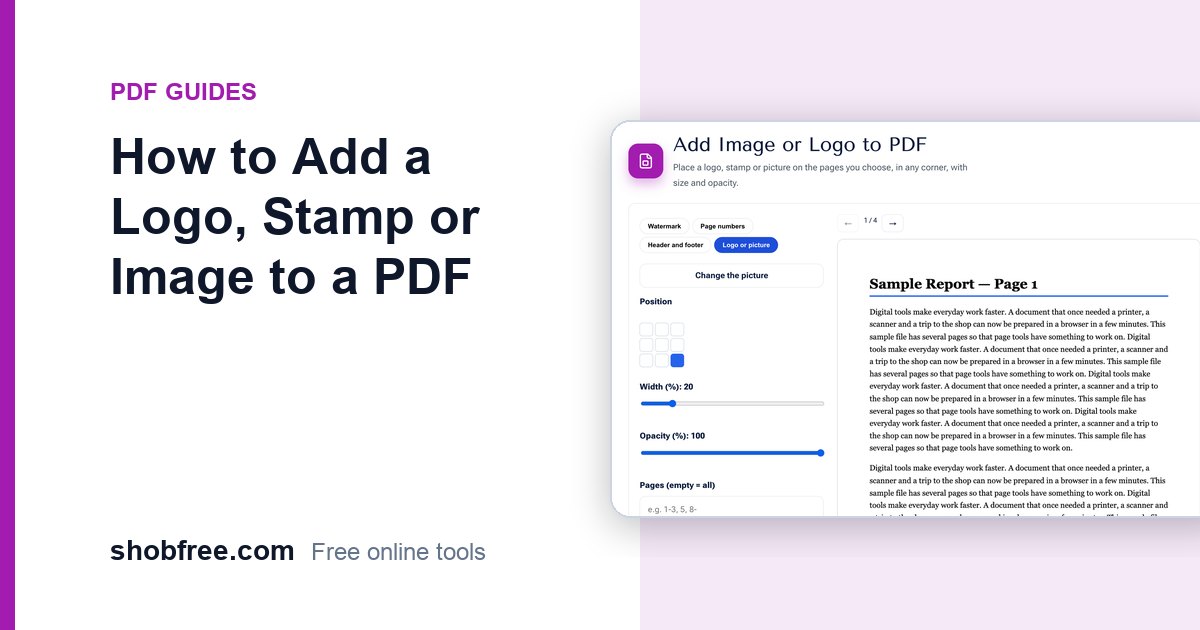
Open Add Image or Logo, choose the PDF, press Choose a picture, then pick the position, size and opacity. Check the preview and press Download PDF.
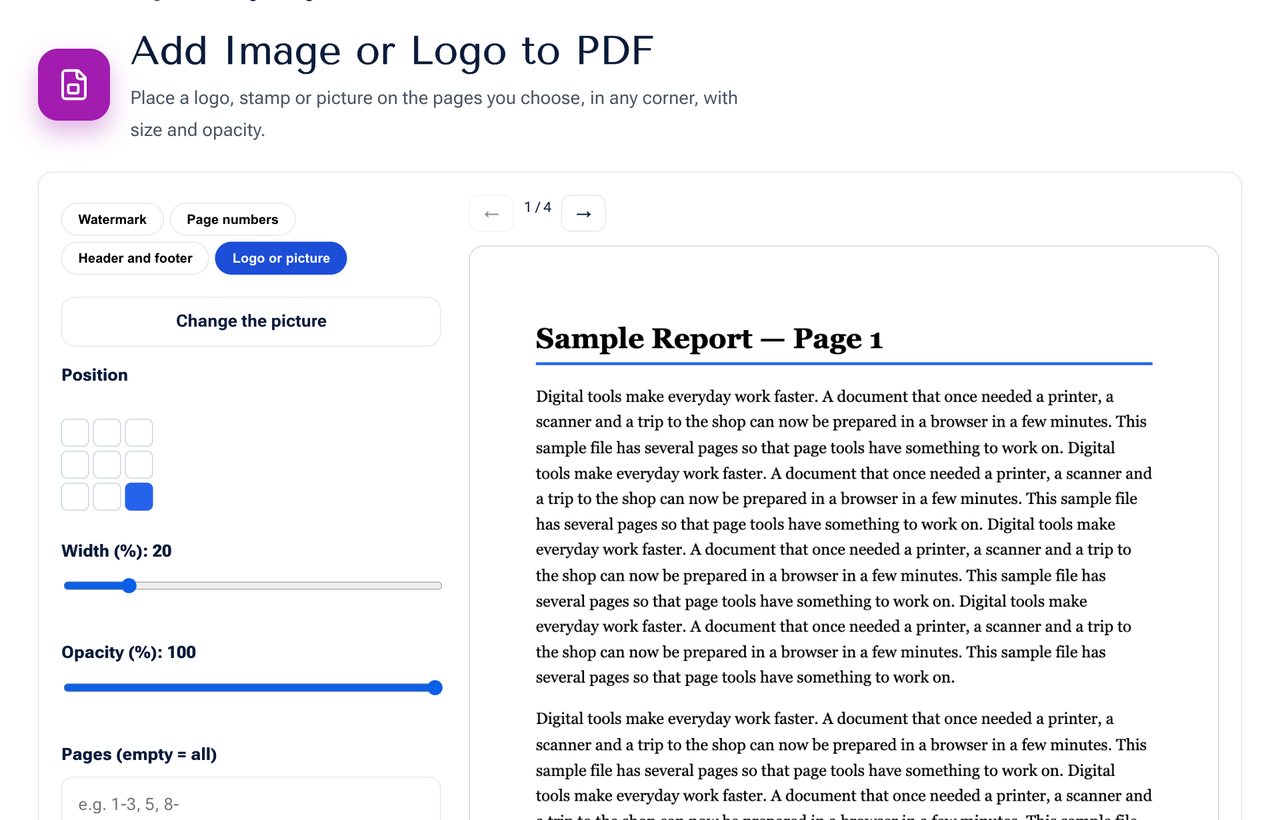 The Add Image or Logo tool: choose a picture, position and size.
What you can place
- A company logo in a corner of every page.
- A round or square stamp to show approval, such as "Approved" or "Paid".
- A photo on a CV or ID page.
- A scanned signature, for a quick way to sign. For drawing a signature, use Sign PDF.
- A QR code made with the QR Code Generator, so readers can open a web address from the printed page.
Choose the right picture
- Use a PNG with a transparent background for logos and stamps, so that only the shape shows and no white box covers the page.
- Use a picture at least 600 pixels wide so that it stays sharp when printed.
- Remove a plain background with Change Photo Background Colour if your logo has a white square around it.
Steps
- Open the tool and choose your PDF.
- Press Choose a picture and select the file.
- Click one of the nine squares to set the position: any corner, edge or the centre.
- Set Width (%) to control the size as a share of the page width. 15 to 25 percent suits a logo.
- Set Opacity lower for a faint stamp or a background mark.
- Type a range in Pages to stamp only some pages, such as 1 for the first page only.
- Press Download PDF.
Position and size tips
| Use | Suggested position | Width |
|---|---|---|
| Company logo | Top left or top right | 15 to 20 percent |
| Approval stamp | Bottom right | 15 to 25 percent |
| Draft or paid mark | Centre | 30 to 50 percent, low opacity |
| QR code | Bottom corner | 12 to 18 percent |
Print and share
For print, check the preview at a large size and keep a margin of at least a centimetre. For email, stamp a copy and keep the original. A logo does not make a file tamper-proof, so for important documents also protect the file with Protect PDF.
Privacy
Both the PDF and the picture stay on your device. Nothing is uploaded.
Frequently asked questions
Can I put two different images? Run the tool twice. The second run adds to the file saved by the first.
Can I move the image after placing it? For free placement and dragging, use the Edit PDF tool, which lets you drag pictures anywhere on a page.
Which picture formats work? JPG, PNG and WebP pictures.
Will the picture lose quality? The picture is placed at its original quality. A larger file gives a sharper print.
Next step
Open Add Image or Logo and stamp your document. To add a text mark as well, see How to Add a Watermark to a PDF.