How to Add a Header and Footer to a PDF (With Page Numbers)
Put a title, date, company name or page numbers in the header and footer of every PDF page, with alignment and colour, in English or Bangla.

A header and a footer give a document a finished look and make it easier to use: the report title at the top, the company name or a confidentiality notice at the bottom, and the page number on every page. The free Header and Footer tool adds them to an existing PDF without opening any editing software.
Quick answer
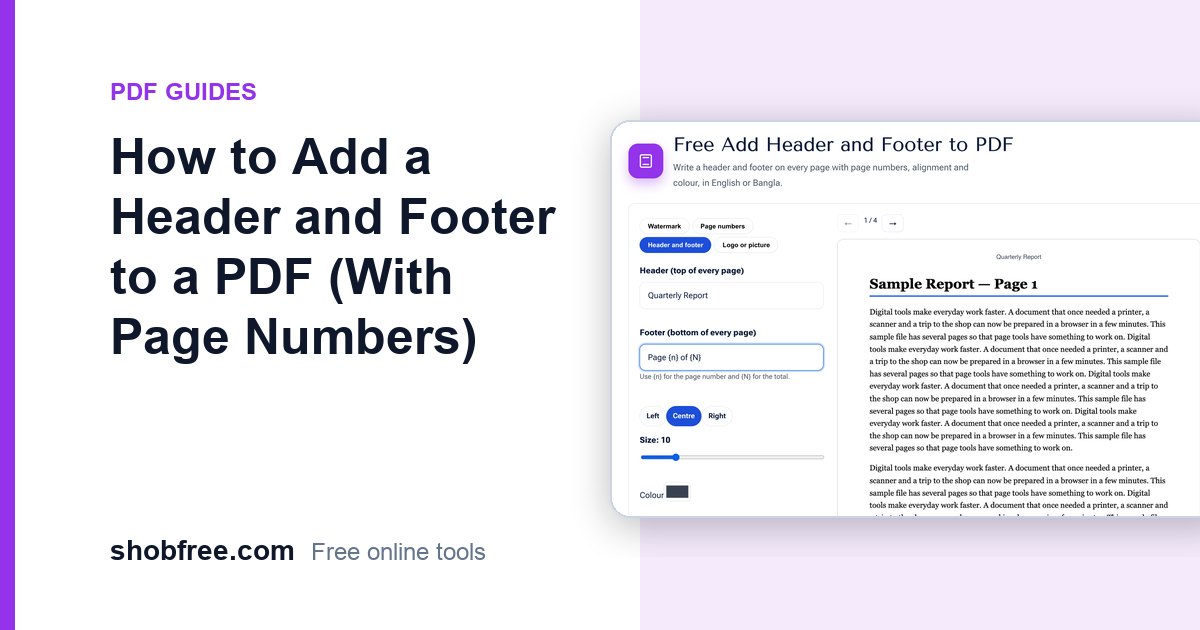
Open Header and Footer, choose your PDF and type the text for the header (top) and footer (bottom). Pick the alignment and the colour, check the preview and press Download PDF.
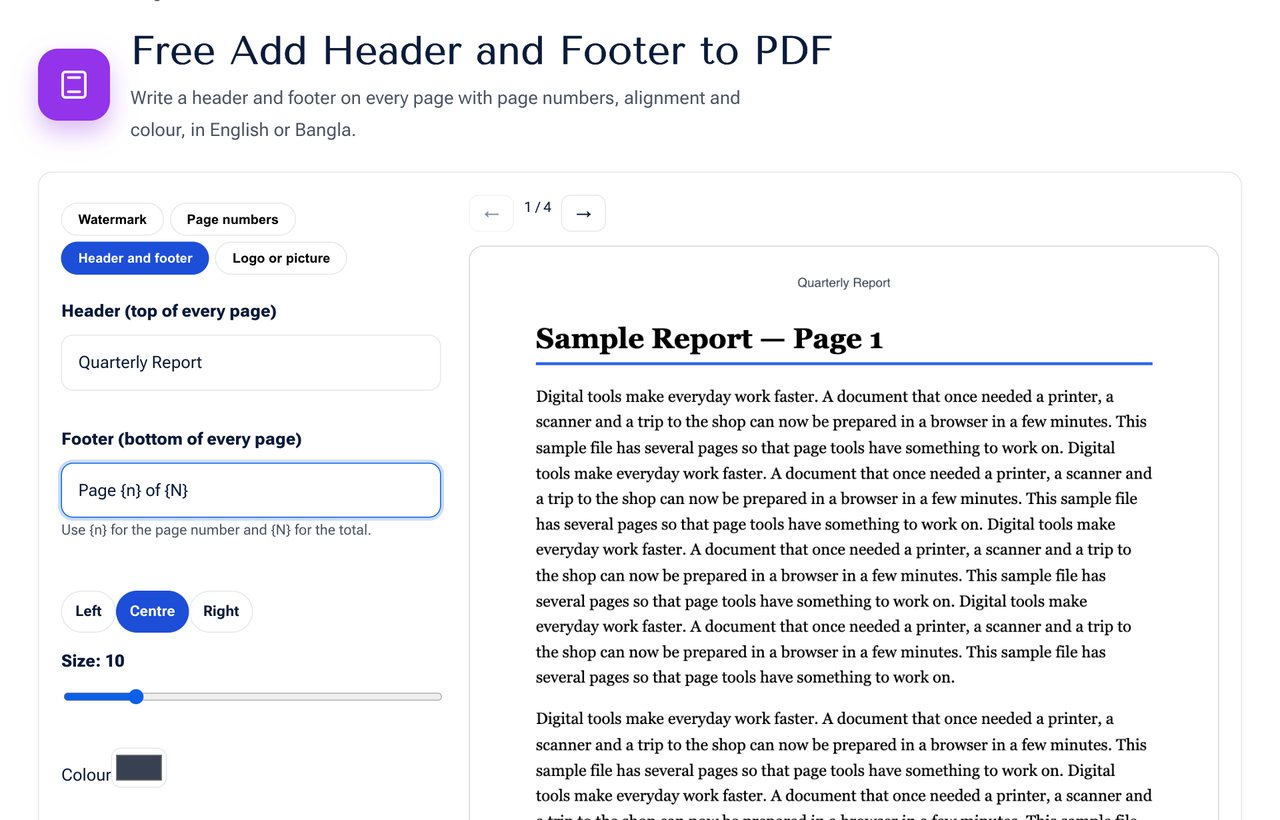 The Header and Footer tool with a header and a footer typed in.
What to put in a header and footer
| Place | Typical content |
|---|---|
| Header | Document title, company or school name, report name, "Confidential" |
| Footer | Page number, date, website, file name, copyright notice |
Variables you can use
You do not need to type the page number yourself. In the footer or header box you can write:
- {n} for the current page number
- {N} for the number of pages
- {name} for the file name
So Page {n} of {N} becomes "Page 4 of 12". A header such as Annual Report 2026 is added exactly as typed on all pages.
Alignment, size and colour
- Left, centre or right: choose where the text sits across the page.
- Size: 9 to 11 points is usual for headers and footers.
- Colour: dark grey looks clean and professional. Use a lighter shade for a subtle label.
Steps
- Open the tool and choose your PDF.
- Type text in the header box, the footer box, or both.
- Choose the alignment and size.
- Check the preview, and use the arrows to see other pages.
- Press Download PDF.
English and Bangla text
Both English and Bangla can be used. Bangla is drawn by your browser with a proper Bangla font, so conjunct letters and vowel signs are correct. Because it is placed as a picture, the Bangla text cannot be selected or searched in the saved file, while English text remains real text.
Tips
- Keep headers short. One line of 60 characters or fewer reads best.
- Use the footer for page numbers and the header for the title, and avoid repeating the same information in both.
- For legal or confidential documents, add a notice in the header and a watermark with Add Watermark.
- If the page already has content near the top or bottom edge, check the preview to avoid overlap.
What the tool does not do
It does not shift the page content. The text is placed in the margin area, so a page with no margin could show overlap. If a page is stored as rotated, it is left unchanged.
Privacy
Your PDF is processed on your device and is never uploaded.
Frequently asked questions
Can I use different headers on odd and even pages? Not in one pass. Run the tool twice with different page ranges.
Can I include today's date? Type the date in the text. Automatic date variables are not available.
Will it replace an existing header? No. New text is added on top of the page. Remove any old header first with the Edit PDF tool.
Next step
Open Header and Footer and finish your document. To number the pages on their own, see How to Add Page Numbers to a PDF.