How to Add Page Numbers to a PDF (Format, Position, Bangla)
Add page numbers to any PDF with your own format, position, start number and Bangla digits, with a live preview and a free download.

A long report, a thesis or a bundle of documents is hard to use without page numbers. Contents pages, references and "see page 14" instructions all depend on them. Adding numbers to a PDF used to need desktop software, but the free Add Page Numbers tool does it in your browser, with a live preview before you save.
Quick answer
Open Add Page Numbers, choose your PDF, pick a format such as Page {n} of {N}, choose the position and press Download PDF.
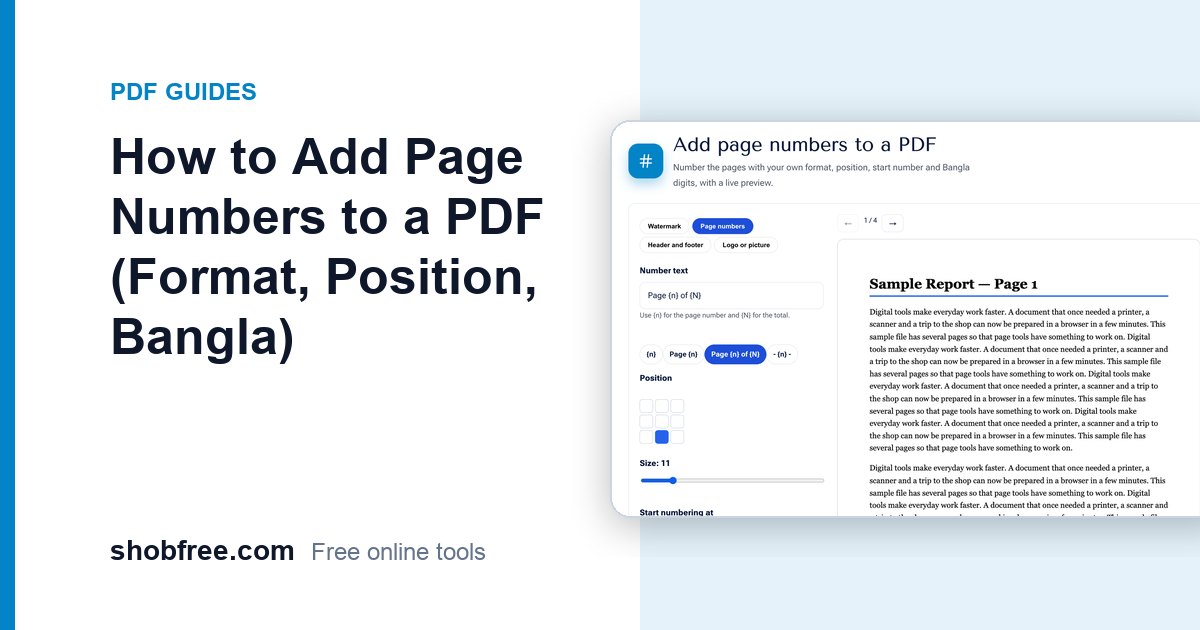
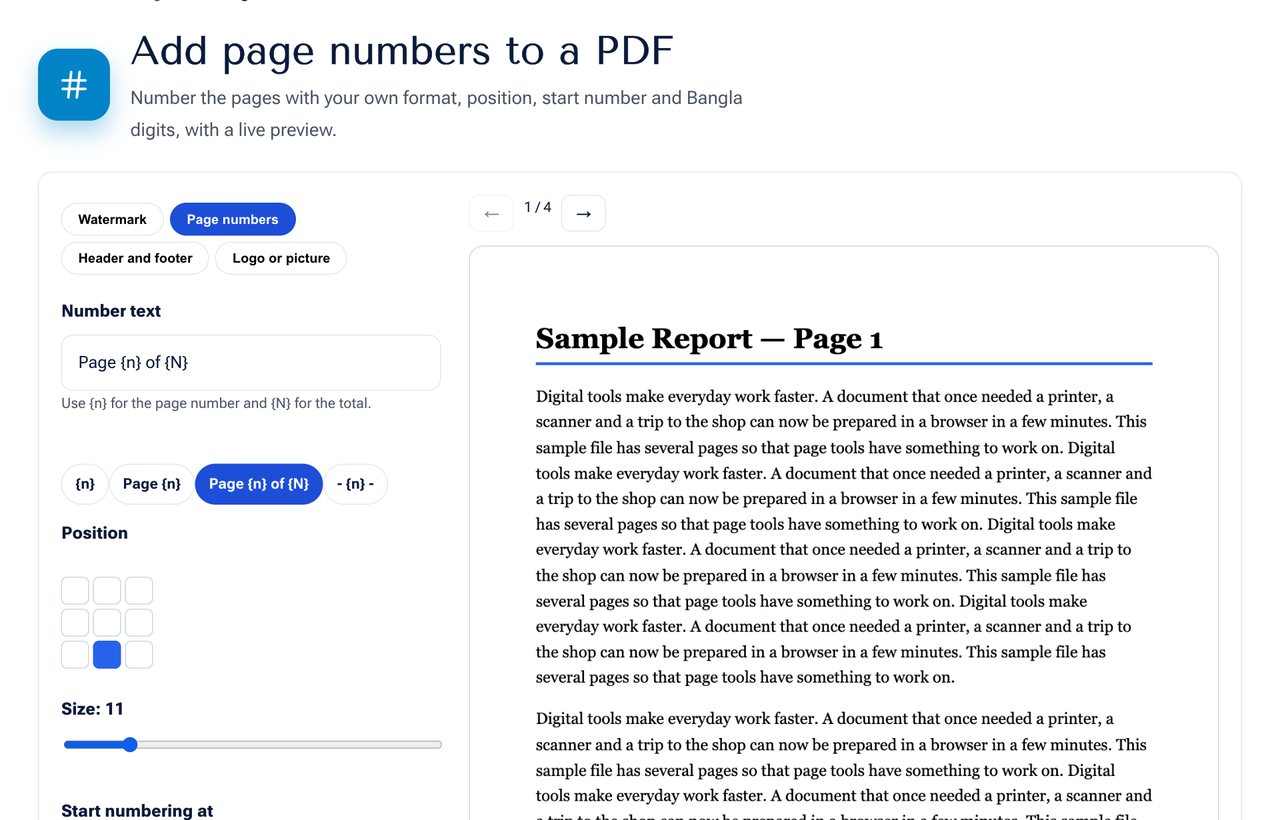 The Add Page Numbers tool with a live preview of the first page.
Choosing the number format
The text box accepts your own wording. Use {n} for the current page number and {N} for the total number of pages. Some useful patterns:
| You type | Page 3 of 10 shows |
|---|---|
| {n} | 3 |
| Page {n} | Page 3 |
| Page {n} of {N} | Page 3 of 10 |
| - {n} - | - 3 - |
| {n} / {N} | 3 / 10 |
Position, size and start number
- Position: a nine-square grid lets you place the number in any corner or edge. Bottom centre is the most common, and bottom right is usual for books and reports.
- Size: 10 to 12 points matches ordinary body text.
- Start numbering at: set 0 to give a cover its own number, or choose a higher number when the file continues another document.
- Skip the first page: a cover or title page is usually left unnumbered. Tick this option so the number starts on page two.
- Pages: leave the range empty for all pages, or type a range such as 3-20 to number only part of the file.
Bangla digits
For a document in Bangla, tick Use Bangla digits. The numbers are written as ১, ২, ৩ and so on, and "Page 3 of 10" becomes "Page ৩ of ১০". The digits are drawn by your browser with a proper Bangla font so they look right in any PDF viewer.
Steps in detail
- Open the tool and choose your PDF.
- Look at the preview. Use the arrows to check other pages.
- Change the format, position and size until the preview looks right.
- Press Download PDF. The saved file is named with "numbered" at the end.
Tips for a neat result
- Keep the number away from the page edge. The tool leaves a margin of about one centimetre.
- Do not number a cover and a table of contents the same way as the body. Use a range for the main text.
- If the document has odd-sized pages, check the preview of a few of them.
- For both numbering and text at the top, use the Header and Footer tool, which supports the same variables.
Pages that are turned
If a page is stored as rotated in the file, the tool leaves it unchanged to avoid placing the number sideways. Rotate the page first with the Rotate PDF tool and apply the numbers afterwards.
Privacy
The file is processed in your browser and is not uploaded. You can work on private documents.
Frequently asked questions
Can I number only some pages? Yes. Type a range such as 2-15 in the pages box.
Can I put the number on the left on even pages and right on odd pages? Not in one step. Run the tool twice with different ranges, such as 2,4,6 and 1,3,5.
Will the original file change? No. A new file is created and your original is untouched.
Does it support Roman numerals? Not at the moment. Use the plain number format.
Next step
Open the Add Page Numbers tool and number your document. You can also place a watermark with Add Watermark before you share it.