How to Turn a Photo into a Pencil Sketch or Cartoon Online
Convert a photo into a pencil sketch, colour sketch or cartoon in your browser, learn how the effect works and which photos give the best results.

A pencil sketch effect turns an ordinary photo into something that looks hand-drawn. It makes a nice profile picture, a gift, a card or a social media post, and it can be done in seconds. The free Photo to Sketch Converter makes pencil sketch, colour sketch and cartoon styles in your browser, and your picture is never uploaded.
Quick answer
Choose a photo, pick a style (pencil sketch, colour sketch or cartoon), adjust the strength and download the picture as a JPG.
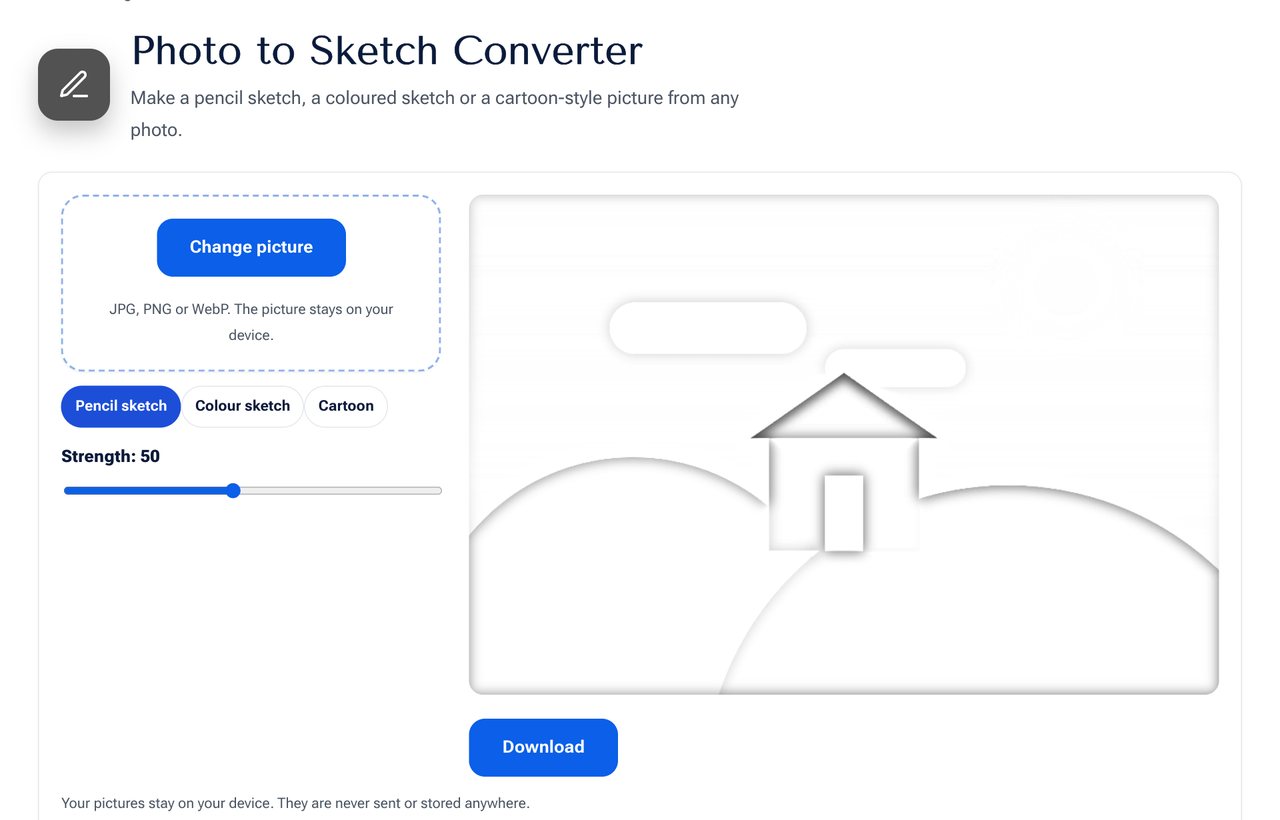 The Photo to Sketch Converter with the pencil sketch style.
The three styles
| Style | What you get | Best for |
|---|---|---|
| Pencil sketch | Black and white line drawing | Portraits, landmarks, gifts |
| Colour sketch | Sketch lines over the original colours | Landscapes, flowers, food |
| Cartoon | Flat colours with dark outlines | Profile pictures, fun posts |
How the effect works
The pencil sketch uses a classic technique:
- Convert the photo to greyscale.
- Invert it to a negative.
- Blur the negative.
- Blend it with the greyscale using the colour-dodge mode.
Where the picture has edges, the blurred negative and the original differ, so dark lines appear. Flat areas become nearly white, like paper. A higher strength means a bigger blur and heavier lines. The cartoon style smooths the colours into a few flat levels and draws dark outlines where it detects strong edges.
Which photos work best
- Clear subject with a plain or simple background.
- Good lighting with visible shadows, so the sketch has shape.
- Sharp focus. Blurry photos give vague lines.
- Portraits facing the camera usually look excellent.
- Higher resolution gives finer pencil strokes. Very small pictures look rough.
Steps
- Open the Photo to Sketch Converter.
- Choose a photo from your phone or computer.
- Select the style you want.
- Move the strength slider until the lines look right.
- Download the result.
Ideas to use your sketch
- A profile picture that stands out.
- A personalised gift or card for a friend's birthday.
- A cover for a story, poem or blog post.
- A background for a quote picture. See How to Make Quote Images.
Tips for better results
- Crop the photo first so the subject fills the frame. Use the Crop Image tool.
- Raise the brightness of a dark photo before converting.
- Try a lower strength for faces, and a higher strength for buildings.
- Compare the three styles on the same photo, as the best one is not always the obvious one.
Privacy
The picture is processed on your device. It is not sent to a server, so personal photos remain private. See the privacy page for details.
Frequently asked questions
Will the sketch look like a real drawing? It imitates the look of a pencil drawing, but it is a filter and not an artist's work.
Can I print it? Yes. Use a high-resolution photo for a sharp print.
Why is my result mostly white? The strength may be too low or the photo too bright. Try a darker photo or a higher strength.
Next step
Try your own photo in the Photo to Sketch Converter. For other photo effects, see Photo Filters and Invert Image Colors.