How to Make Many Certificates at Once From a List of Names
Make one certificate design and create a PDF with a page for every name in your list, with remembered signer and organisation details. Free in your browser.

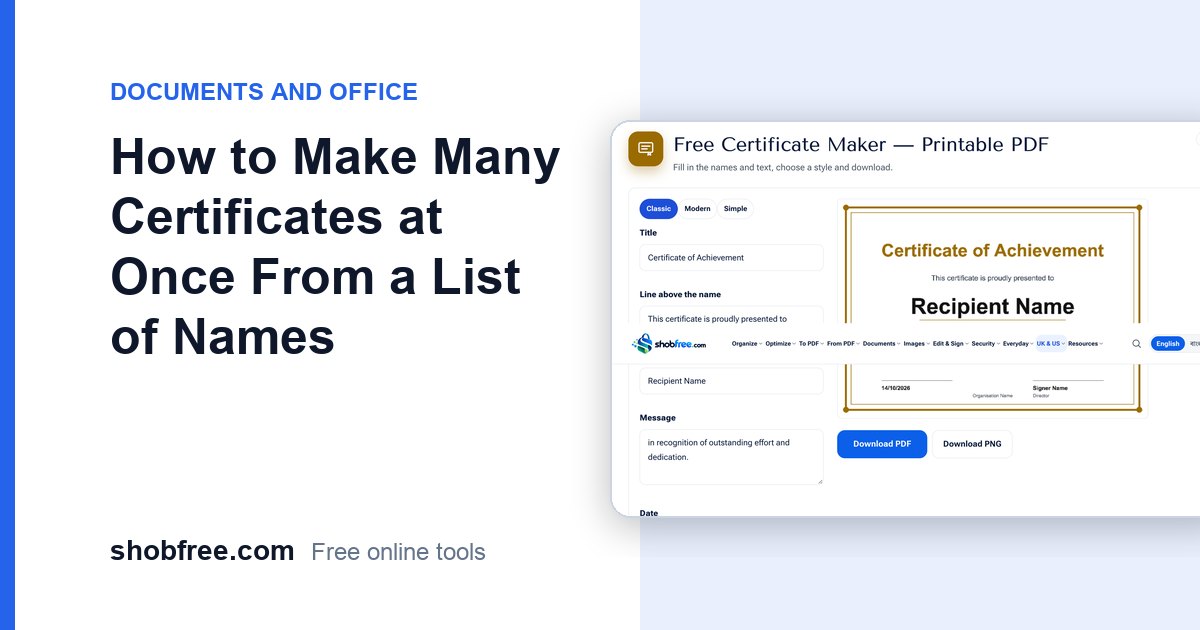
After a competition, a training or a school programme, you often need the same certificate for many people. Typing each name into a design takes an afternoon. The Certificate Maker now builds all of them in one go: paste your list of names, and it creates one PDF with a page for each person.
Quick answer
Open the Certificate Maker, set up the design once, type or paste the names, one per line, in Many certificates at once and press Download certificates (PDF).
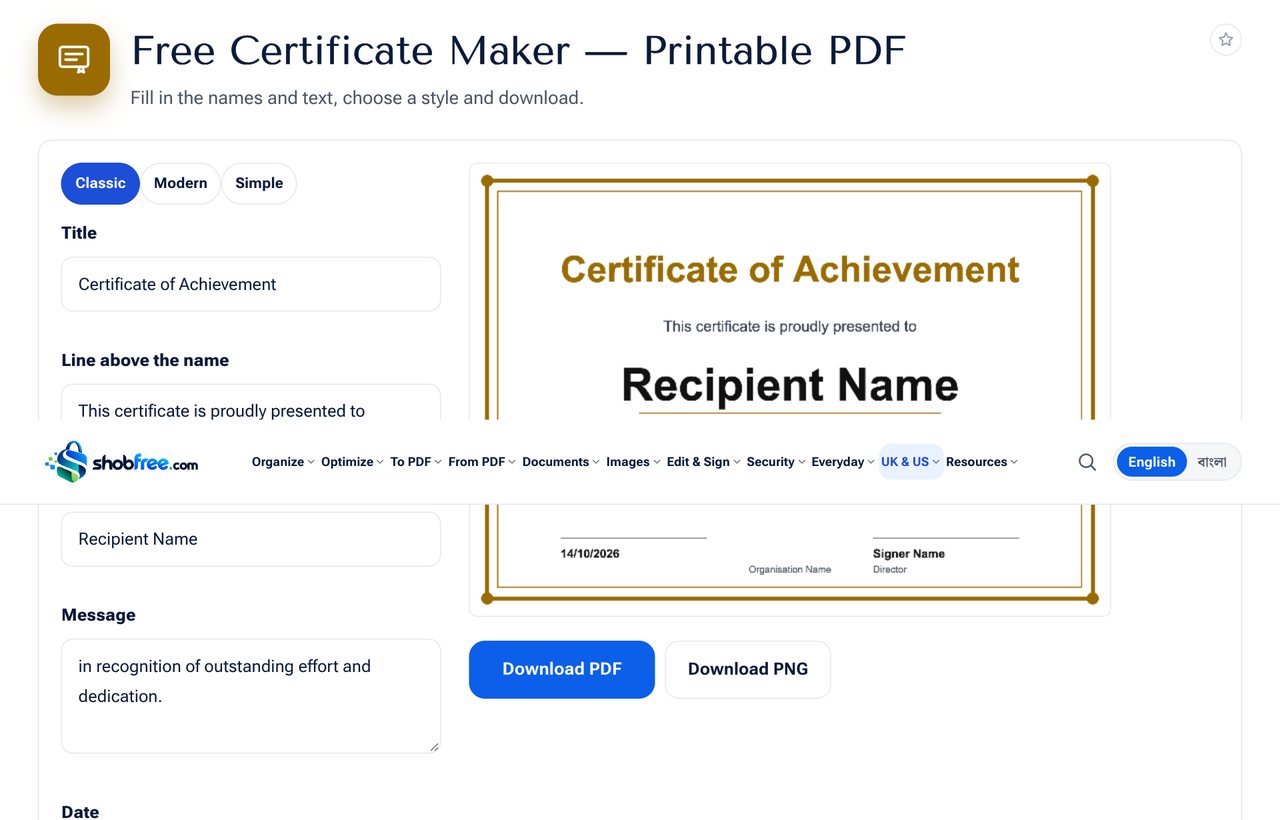 The Certificate Maker with a list of three names.
Step by step
- Choose a style: classic, modern or simple.
- Fill in the title, the line above the name (such as "This certificate is proudly presented to"), the text, the date, the signer, the signer's role and the organisation. Pick a colour that matches your logo.
- Check the preview, which shows the first design with the sample name.
- Under Many certificates at once, paste names one per line. Up to 200 names are used.
- Press Download certificates (PDF). Each page is one certificate, in the order of your list.
- Print the pages on A4 or save the file to send by email.
Prepare the list
- Copy a column of names from a spreadsheet and paste it. Each cell becomes a line.
- Check spelling first. A wrong name means reprinting a page.
- Use the full name that the person wants on the certificate.
- Bangla names work. Type or paste them as they are.
Your details are remembered
The organisation name, signer, role, colour and text are kept in your browser, so the next time you open the tool they are already filled in. The recipient name and date are not kept, because they change every time. These details stay on your device and are not uploaded. Clear your browser data if you want them removed.
Printing tips
- Print one page first to check margins and colours.
- Use thicker paper (150 gsm or more) for a certificate feel.
- Choose "actual size" or 100 percent in the print window.
- For a colour border, use a colour printer and the "classic" style.
- Sign by hand after printing if you want a real signature, or add a drawn signature with Sign PDF before printing.
Make single certificates as pictures
For one certificate you can also press Download PNG and share it on social media or a messaging group.
Frequently asked questions
How many names can I use? Up to 200 in one file. For more, run it in batches.
Can I change the design for each person? All pages share the same design. Only the name changes.
Can I use my own logo? Use the Add Image or Logo tool on the saved file to place your logo on every page.
Is the file uploaded anywhere? No. Everything is made in your browser.
Next step
Open the Certificate Maker, paste your list and print.