How to Continue With the Same File in the Next Tool
After a tool saves your file, shobfree.com offers the next tool and carries the file over, so you can chain steps without choosing it again. Private.

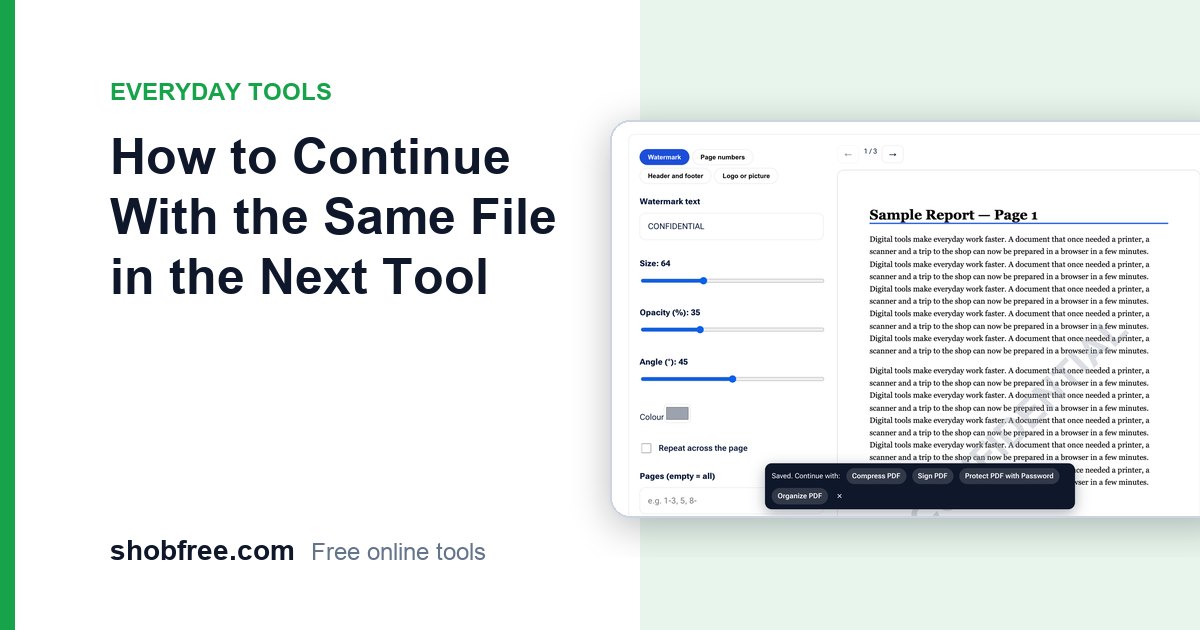
Many jobs take more than one step: merge some PDFs, then compress the result, then add a password. Doing that normally means saving a file, going to the next tool, finding the file again and choosing it. shobfree.com now shortens this. After a tool saves a file, it offers the next tools, and the next tool can pick up your file with one click.
Quick answer
When a download finishes, a bar appears with links such as Compress PDF, Sign PDF, Protect PDF and Organize PDF. Open one, and a bar at the top says Continue with your last file. Press Use it here, and the file is loaded into the tool.
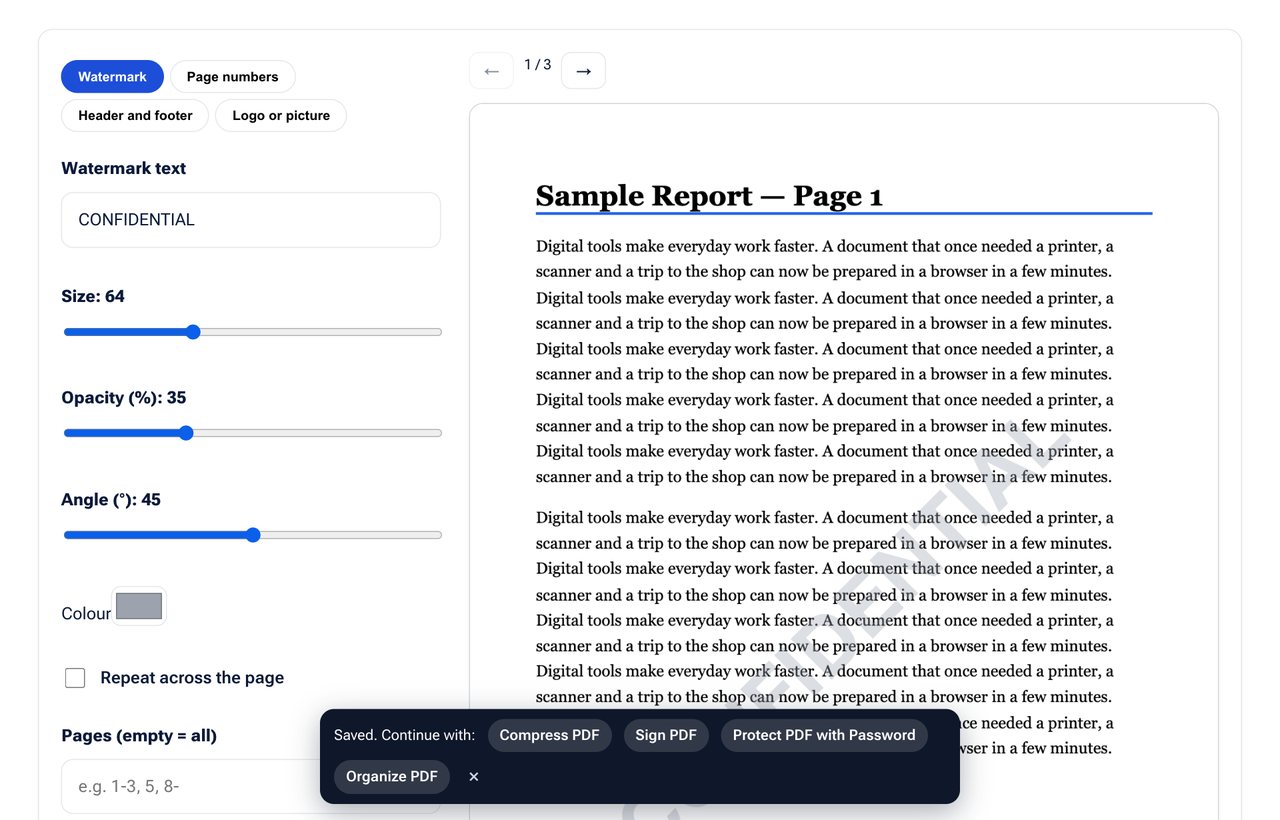 After a download, the bar offers the next tools for the file you just saved.
How it works
- You save a file from any tool, for example a PDF from Add Watermark or a photo from the Photo Editor.
- A bar offers the next tools. For a PDF you see Compress, Sign, Protect and Organize. For a picture you see Compress Image, Resize Image, Image to PDF and Crop Image.
- The file is kept for 30 minutes in your browser. It is stored in the browser's own storage on your device.
- On the next tool page, the bar shows the file name and a Use it here button. Pressing it fills the tool's file box for you.
- Close the bar with × and the file is forgotten right away.
Examples of useful chains
| Goal | Chain |
|---|---|
| Send a heavy report by email | Merge PDF, then Compress PDF |
| Share a private document | Redact PDF, then Protect PDF |
| Prepare a signed contract | Edit PDF, then Sign PDF, then Add Page Numbers |
| Make a photo ready for a form | Photo Editor, then Image Size in KB |
| Turn photos into one file | Photo Editor, then Image to PDF |
What is kept, and what is not
- Only the last saved file is kept, and only for 30 minutes.
- It never leaves your device. The file is not uploaded to our servers.
- Large files are skipped. Files above about 40 MB are not kept, to protect your browser's memory.
- Private windows may not keep it at all, which is normal.
Other things the site remembers for you
To save you from typing the same thing again, some tools keep small details in your browser:
- Your signatures in Sign PDF, up to four.
- Shop name, address and currency in the Receipt Maker.
- Company details in the Business Card Maker.
- Organisation, signer and colour in the Certificate Maker.
- Your pinned and most used tools on the home page, as described in How to Pin Your Favourite Tools.
All of this stays on your device. Clearing your browser data removes it.
Frequently asked questions
Does the next tool always accept my file? It accepts the same kind of file it normally accepts. A tool that needs a PDF will not take a picture.
Why did the bar not appear? The file may be too large, or your browser blocked its storage. You can always choose the file by hand.
Is anything uploaded when I press Use it here? No. The file moves inside your browser from one page to another.
Next step
Save a file in any tool and look for the bar. Try it with Merge PDF and then Compress PDF.