How to Rotate PDF Pages Permanently (One Page or All)
Turn sideways or upside-down PDF pages the right way up, one by one or all together, and save the file so it stays rotated. Free and private.

A scan comes out sideways. A phone photo converted to PDF has one page upside down. You rotate the view in your PDF reader, but the next time the file is opened the page is wrong again. A temporary rotate in a viewer does not change the file. The free Rotate PDF tool changes the pages themselves and saves a corrected file.
Quick answer
Open Rotate PDF, choose your file and press the rotate button on a page, or press Rotate right to turn all pages. Press Download PDF and the saved file stays rotated.
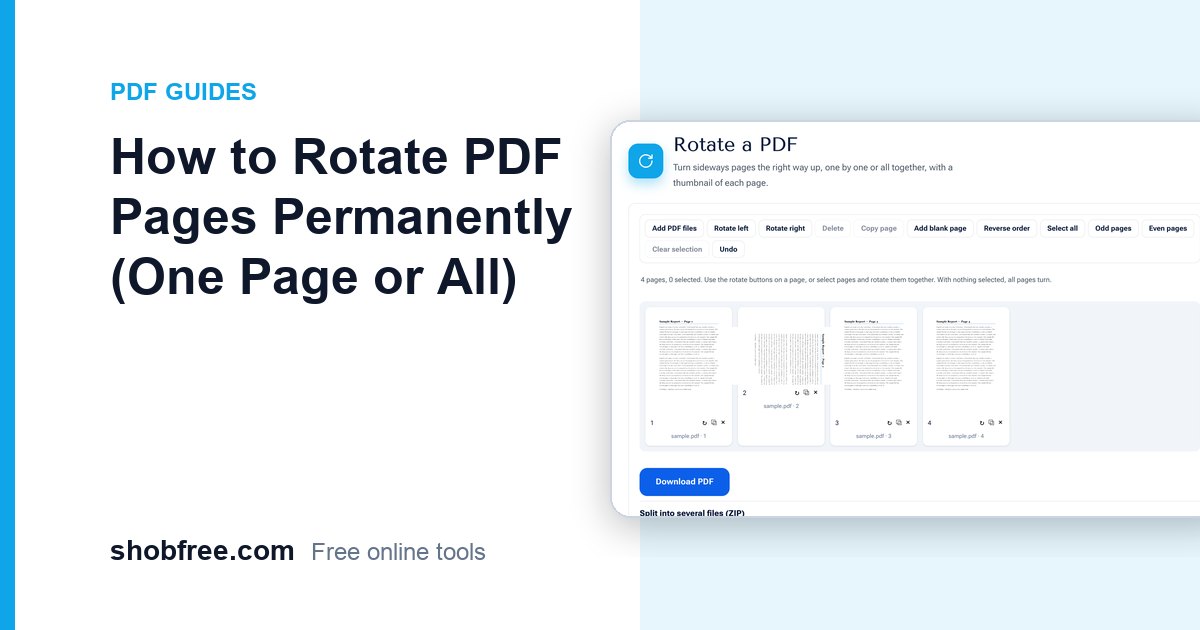
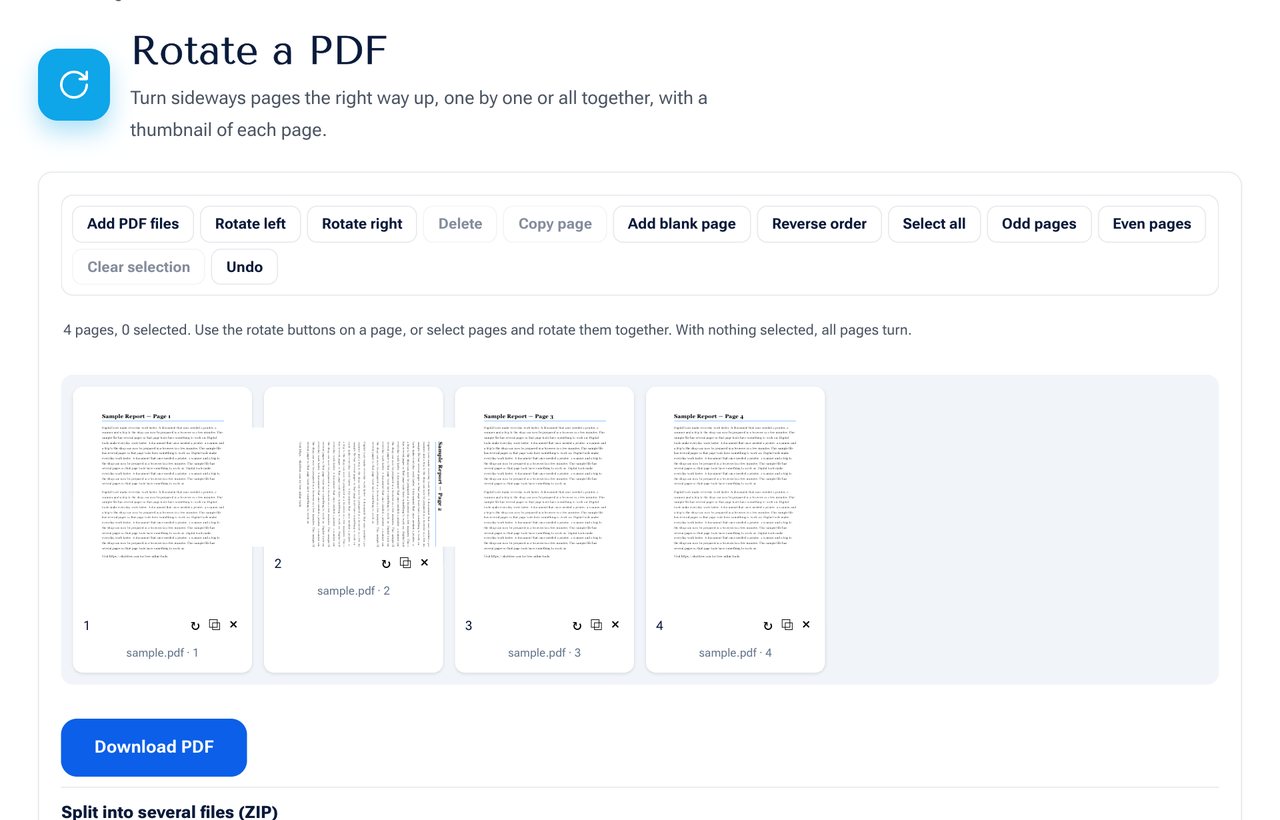 The Rotate PDF tool: each page has its own rotate button.
One page, some pages or all
- One page: press the rotate button (↻) under that page's thumbnail. Each press turns it 90 degrees clockwise.
- Some pages: click pages to select them, then press Rotate left or Rotate right in the toolbar.
- All pages: with nothing selected, Rotate left and Rotate right turn the whole document.
The thumbnail turns straight away, so you can check the result before you save.
Which way to rotate
| Page looks like | Press |
|---|---|
| Top of the page is on the left | Rotate right |
| Top of the page is on the right | Rotate left |
| Page is upside down | Rotate right twice |
Step by step
- Open the Rotate PDF tool and choose your PDF.
- Wait for the thumbnails to load.
- Rotate the pages that need it.
- Press Download PDF.
- Open the saved file in your viewer to confirm.
Why a page is sideways in the first place
- The scanner fed the paper in landscape and saved it without turning it.
- A phone camera stored the picture with a rotation flag that some programs ignore.
- A landscape table was placed in a portrait document on purpose, and it should be viewed rotated.
For the last case, rotating the page makes it easier to read on screen, but you may prefer to keep it as the author intended. Check how you will use the file first.
Rotation and other tools
If you plan to add page numbers, a watermark or a header and footer afterwards, rotate the sideways pages first. The tools that add text leave rotated pages unchanged so that numbers do not appear sideways. Rotating first and stamping afterwards gives the best result.
Privacy and quality
The pages are rotated in your browser without being converted to pictures. Text, links and image quality stay the same, and your file is not uploaded anywhere.
Frequently asked questions
Does rotating reduce quality? No. The page keeps its original content and only its orientation changes.
Can I rotate by 45 degrees? No. PDF pages turn in steps of 90 degrees. For a slightly crooked scan use the Document Scanner to straighten the picture.
Is the rotation permanent? Yes. The saved file has the pages stored in the new orientation.
Can I rotate only the landscape pages? Yes. Select them in the grid and rotate them together.
Next step
Open Rotate PDF and fix your pages. For reordering and deleting pages in the same view, use Organize PDF.