How to Edit a Photo Online: Crop, Adjust, Add Text, Stickers
Crop, turn, adjust brightness and colour, add text and stickers, draw and resize a photo in your browser with undo. Free and private.

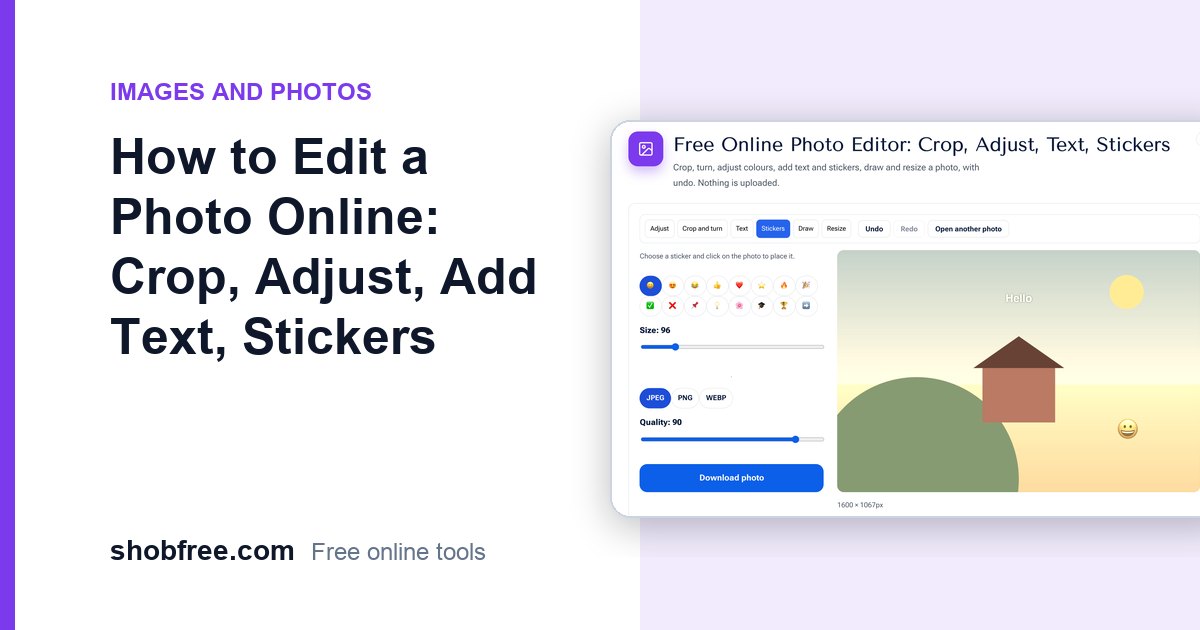
Most photo jobs are small: crop a picture for a form, brighten a dark photo, add a name or date, or make it smaller before you send it. You do not need an app or an account for any of that. The free Photo Editor runs in your browser, lets you undo each step and never uploads your photo.
Quick answer
Open the Photo Editor, choose a photo and use the tabs: Adjust, Crop and turn, Text, Stickers, Draw and Resize. Choose JPG, PNG or WebP and press Download photo.
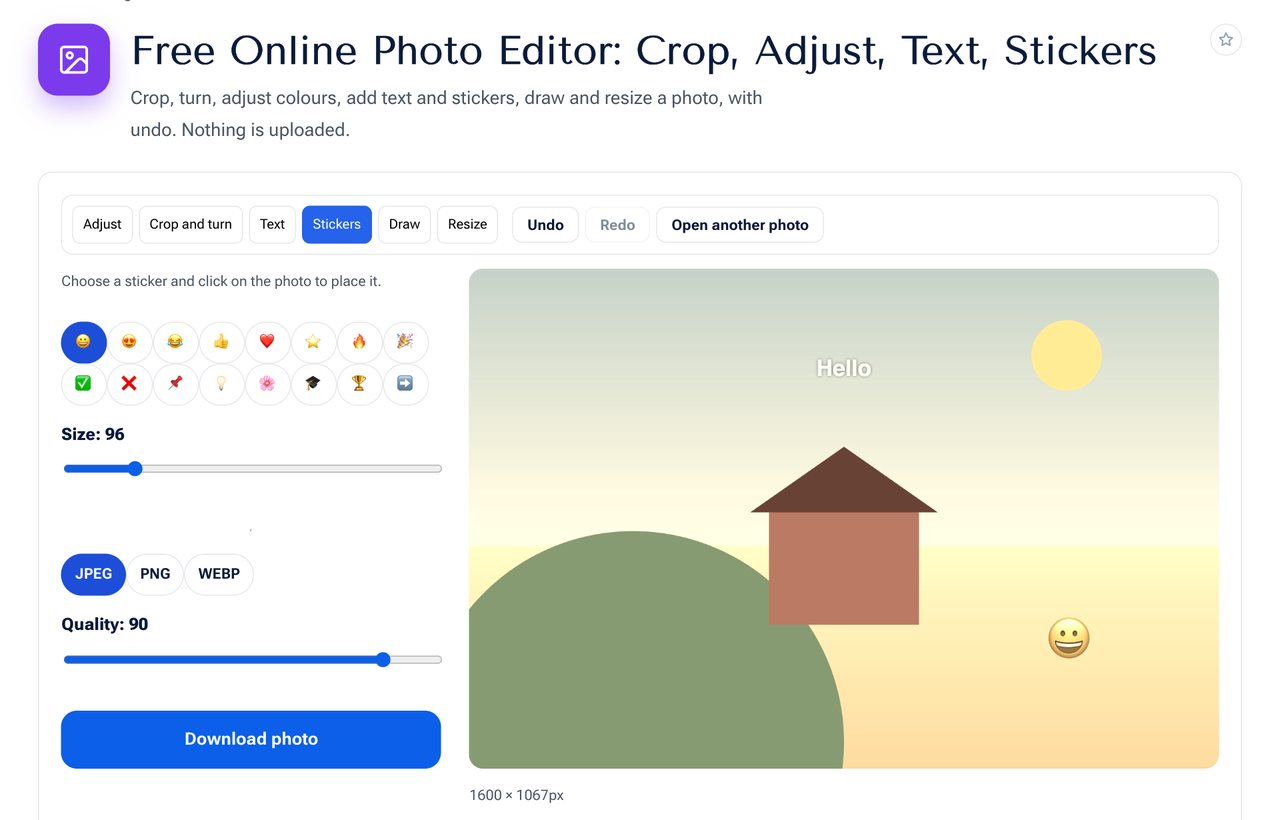 The Photo Editor: a warm tone, text and a sticker added in a few clicks.
What each tab does
| Tab | What you can do |
|---|---|
| Adjust | Brightness, contrast, colour strength, blur, black and white, warm tone, with a live preview. Press Apply to keep the change. |
| Crop and turn | Drag to choose the area to keep, then press Crop. Turn left or right and flip the photo. |
| Text | Type the words, choose size, colour and bold, then click on the photo where it should go. |
| Stickers | Pick an emoji sticker, set its size and click to place it. |
| Draw | Draw with a brush of any colour and size. |
| Resize | Set a new width in pixels. The height follows so the shape stays right. |
Step by step
- Choose a photo. Large photos are scaled down to 4000 pixels on the long side to keep your browser quick.
- Start with Crop and turn so you work only on the part you keep.
- Use Adjust to fix dark or flat photos. Small changes look best.
- Add Text or Stickers, then Draw if you need an arrow or a circle.
- Use Resize if the file must be smaller.
- Choose the format and quality, then download.
Choosing the format
- JPG is best for photos and gives small files. Lower the quality slider to make the file smaller.
- PNG keeps every pixel and transparency, good for drawings and screenshots, with larger files.
- WebP is small and sharp, good for web pages.
If a form asks for a size in KB, edit the photo here and then use Image Size in KB to reach the exact limit.
Undo and safety
Every change can be undone with Undo (and brought back with Redo) for the last fourteen steps. Your original file is never changed, because a new file is created when you download.
Tips
- Brighten a little and raise the contrast a little rather than moving one slider far.
- Put text on a calm part of the photo and pick a colour that stands out. A soft shadow is added so white text stays readable.
- For a profile picture use Circle Crop after cropping to a square.
- Make a photo smaller before emailing with Compress Image.
Privacy
The photo is edited on your device and saved on your device. Nothing is sent to a server.
Frequently asked questions
Does it work on a phone? Yes. Drawing and placing text work with touch.
Can I edit several photos at once? One at a time. For the same size change on many photos use Resize Image.
Will the photo quality drop? Not unless you lower the quality slider or resize the photo to a smaller size.
Can I add Bangla text? Yes. Type Bangla in the text box and click on the photo to place it.
Next step
Open the Photo Editor and edit your photo. After you save, the site offers to continue with the same file in Compress Image or Image to PDF.