How to Test Your Screen for Dead Pixels (and What to Do If You Find One)
Check a monitor, laptop or phone screen for dead and stuck pixels using solid colours, learn the difference, and know your options and warranty rights.

A single dead pixel can be a small annoyance, but a few clustered together can ruin a screen. The best time to find them is the day you buy a monitor, laptop or phone, while you can still return it. The free Dead Pixel Test fills your screen with solid colours so any faulty pixel is easy to see.
Quick answer
Open the test, press Full screen and click through the colours: black, white, red, green and blue. Look closely at each one. A dot that stays black on a bright colour is a dead pixel. A dot that stays bright or coloured on a dark screen is a stuck pixel.
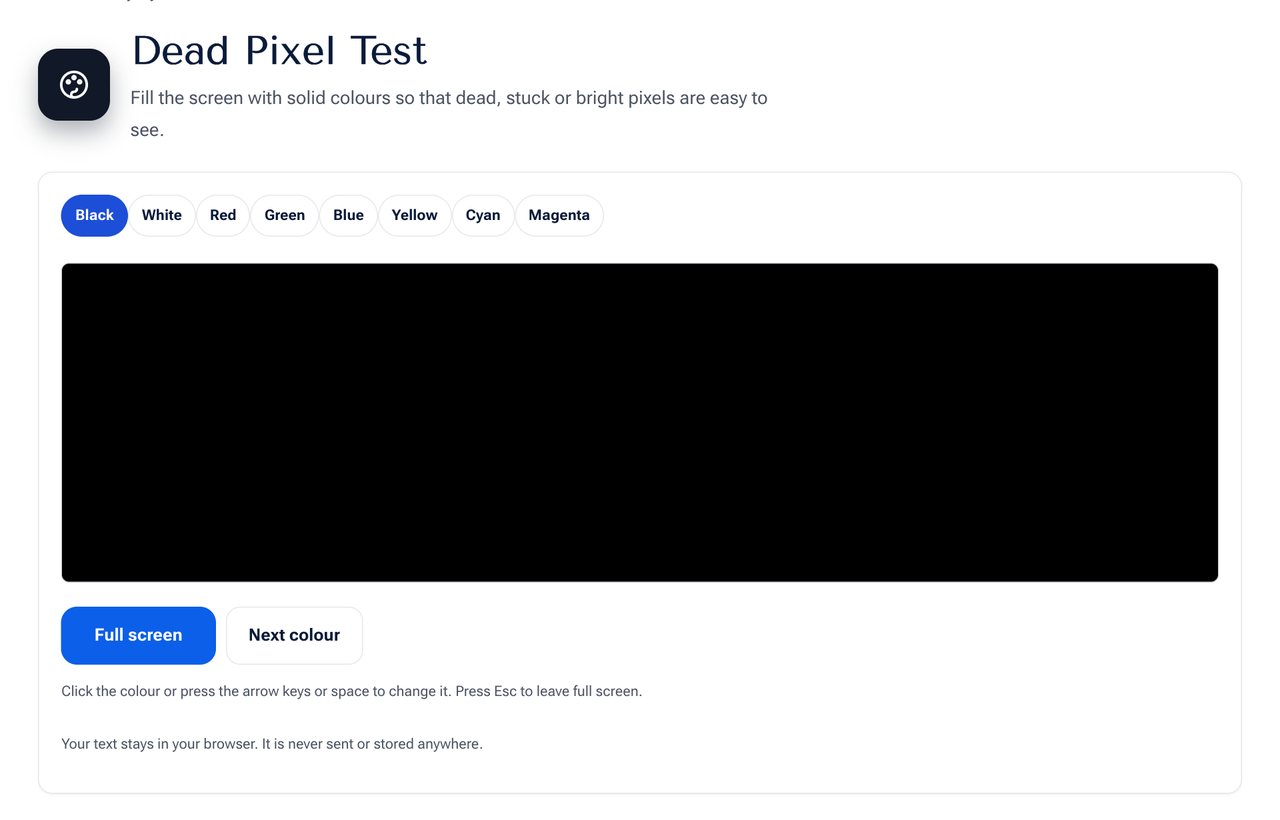 The Dead Pixel Test with colour buttons and the full screen option.
Dead, stuck and hot pixels
| Type | What it looks like | Cause |
|---|---|---|
| Dead pixel | A black dot on any colour | The sub-pixels never light up |
| Stuck pixel | A red, green, blue or yellow dot that stays lit | One or more sub-pixels are always on |
| Hot pixel | A white dot on a dark screen | All sub-pixels are always on |
How to test properly
- Clean the screen with a soft, dry cloth, because dust and fibres look like faults.
- Set the brightness to maximum and turn off any night mode or colour filter.
- Press Full screen so that nothing else is on the display.
- Step through each colour with a click, the arrow keys or the space bar.
- Look from close up, moving your eyes across the screen in sections.
- Test the black and white screens carefully, as they show the two types of fault best.
- Repeat in a dim room to see faint bright spots.
What to do if you find one
- Within the return period: return or exchange the device. Many shops allow this for a defect found on day one.
- Check the warranty policy. Manufacturers set a number of bad pixels they accept, and the limit depends on the brand and the panel class. A single dead pixel often does not qualify for a free replacement.
- Try a gentle fix for stuck pixels. A stuck pixel sometimes recovers after a pixel-refresh video that flashes colours for several minutes, or after very light pressure with a soft cloth while the screen is on. Do not press hard, because you can damage the panel.
- Dead pixels usually cannot be repaired, because the sub-pixel is broken.
Buying tips
- Test the display in the shop, or on the day it arrives.
- Check the seller's policy for pixel defects before you buy.
- Keep the box and receipt until you are sure.
- For phones, test with the screen at maximum brightness and in the dark.
Other useful screen checks
- Backlight bleed shows as bright patches at the edges on a black screen.
- Colour uniformity, where white looks tinted in places.
- Burn-in on OLED screens, which appears as faint image shapes.
Check your screen's resolution and size with the Screen Size Info tool, and test other hardware with the Webcam Test and the Keyboard Tester.
Frequently asked questions
Can a dead pixel spread? A single dead pixel does not spread, but a damaged panel can develop more over time.
Does the test damage my screen? No. Solid colours are safe.
Why do I see dots only on white? Those are probably dust, or dead pixels that show as dark spots on white.
Next step
Run the Dead Pixel Test on every screen you own, and on any new device before you accept it.