How to Create a robots.txt File (With Examples)
Learn what robots.txt does, the correct syntax, safe examples for common sites, and the mistakes that can block your whole website.

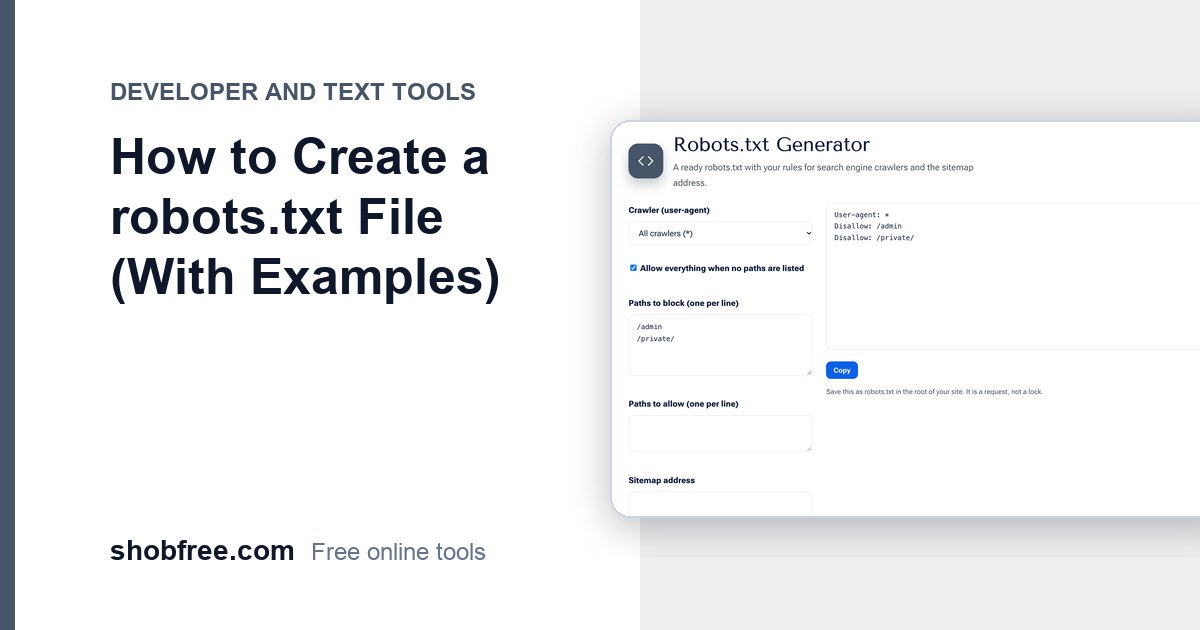
A robots.txt file tells search engine crawlers which parts of your site they may visit. A small mistake can hide your whole site from Google, so it pays to get it right. The free Robots.txt Generator builds a correct file.
Quick answer
Place a plain text file named robots.txt in the root of your site. Use User-agent to choose the crawler, Disallow for paths to skip, and Sitemap for your sitemap address.
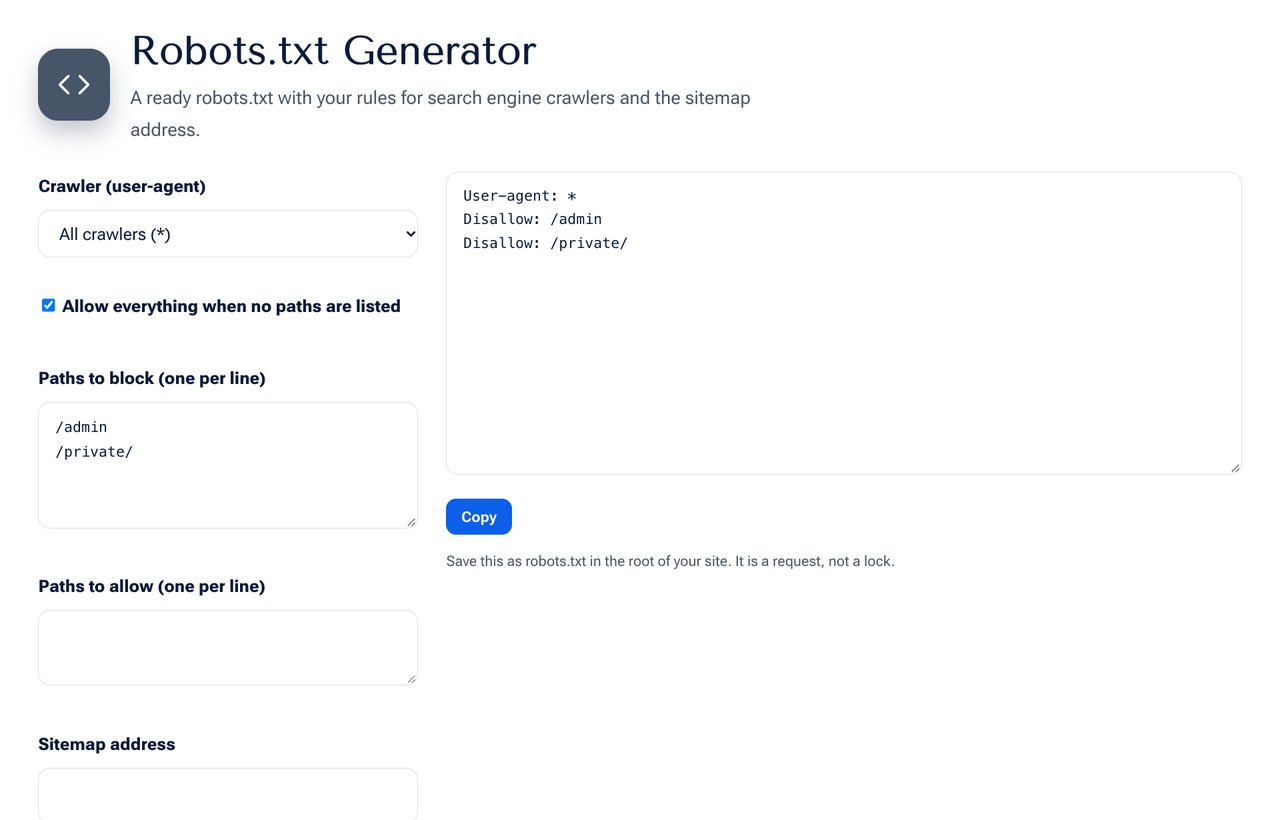 The Robots.txt Generator tool on shobfree.com, ready to use in your browser.
A safe starting file
User-agent: *
Disallow: /admin/
Disallow: /cart/
Sitemap: https://example.com/sitemap.xml
This lets every crawler visit the site except two folders, and shows where the sitemap is.
Important rules
Disallow: /blocks the entire site. Use it only on a staging site.- An empty
Disallow:allows everything. - Paths are case sensitive.
- The file must be at
yourdomain.com/robots.txt, not in a sub folder.
What robots.txt does not do
- It does not hide pages. A blocked page can still be listed if other sites link to it.
- It is not security. Anyone can read the file, and bad bots ignore it.
- It does not remove pages already in search. Use noindex or the removal tool for that.
Common mistakes
- Blocking CSS and JavaScript files, which stops Google rendering the page.
- Copying a staging file with
Disallow: /to the live site. - Forgetting the sitemap line.
- Blocking a page and also adding noindex, so the crawler never sees the noindex.
Testing
After uploading, open the address in a browser to confirm it loads, then test important pages with the URL inspection tool in Google Search Console.
Examples for common sites
For a blog, you may block the search results and admin areas: Disallow: /search and Disallow: /wp-admin/. For an online shop, block cart, checkout and account pages, and parameter-based duplicate listings. For a site under development, block everything with Disallow: /, then remember to remove it at launch.
How to remove a page from search
If a page is already indexed and must disappear, do not block it in robots.txt. Add a noindex meta tag, let Google crawl it once, and then it will drop from results. Blocking it first prevents Google from seeing the noindex instruction. For urgent cases, use the removal tool in Search Console.
What to leave crawlable
Never block the pages you want to rank, the CSS and JavaScript they need, or your images. Block only areas with no search value: admin screens, carts, internal search results and duplicate parameter pages.
Verifying after launch
Open the live file, check that it returns a 200 status as plain text, and test two or three important addresses in the URL Inspection tool. If a page shows "blocked by robots.txt", edit the rule and wait for the next crawl.
Sources and further reading
- Google Search Central, introduction to robots.txt: developers.google.com.
Frequently asked questions
Do I need one? It is not required, but it is good practice and lets you point to your sitemap.
Can I block one crawler only? Yes. Use its name in the User-agent line.
How long until Google notices a change? Google re-reads robots.txt often, usually within a day.
Next step
Build your file with the Robots.txt Generator.