How to Print a PDF as a Booklet (Fold and Staple)
Learn how to rearrange PDF pages for booklet printing, print double sided and fold into a neat booklet at home or at a shop.

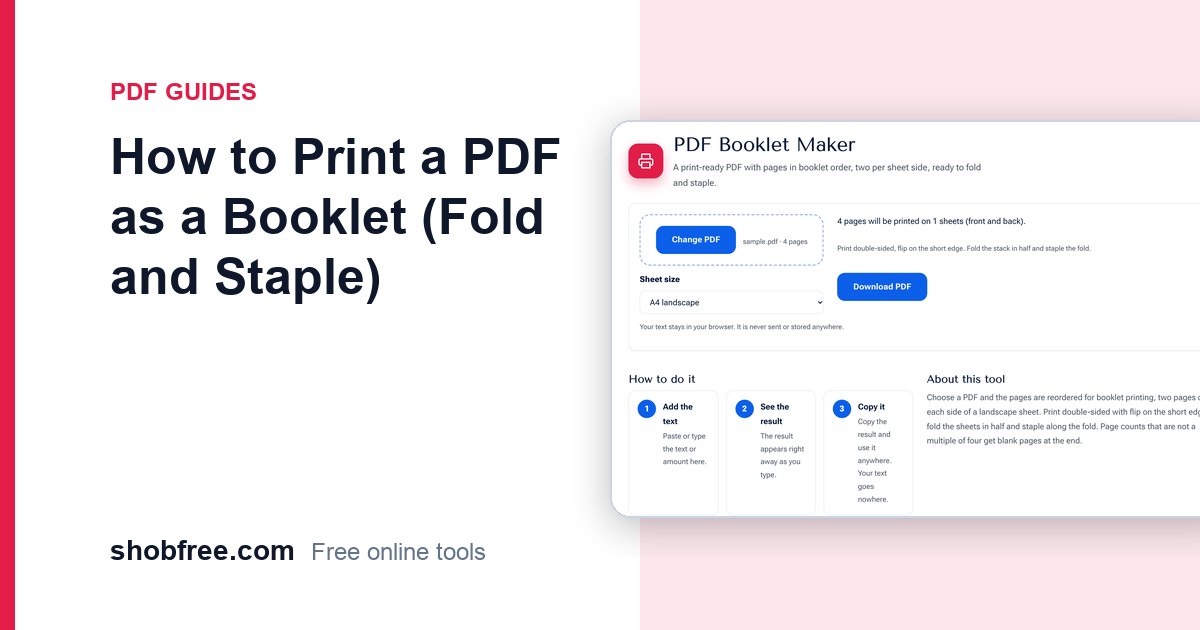
Booklets are a neat way to print a manual, a prayer book, a programme or a small magazine. The pages must be arranged in a special order so that they read correctly once folded. The free PDF Booklet Maker does this in your browser.
Quick answer
Upload the PDF, choose A4 landscape and download the new file. Print it double sided, flip on the short edge, fold the stack in half and staple along the fold.
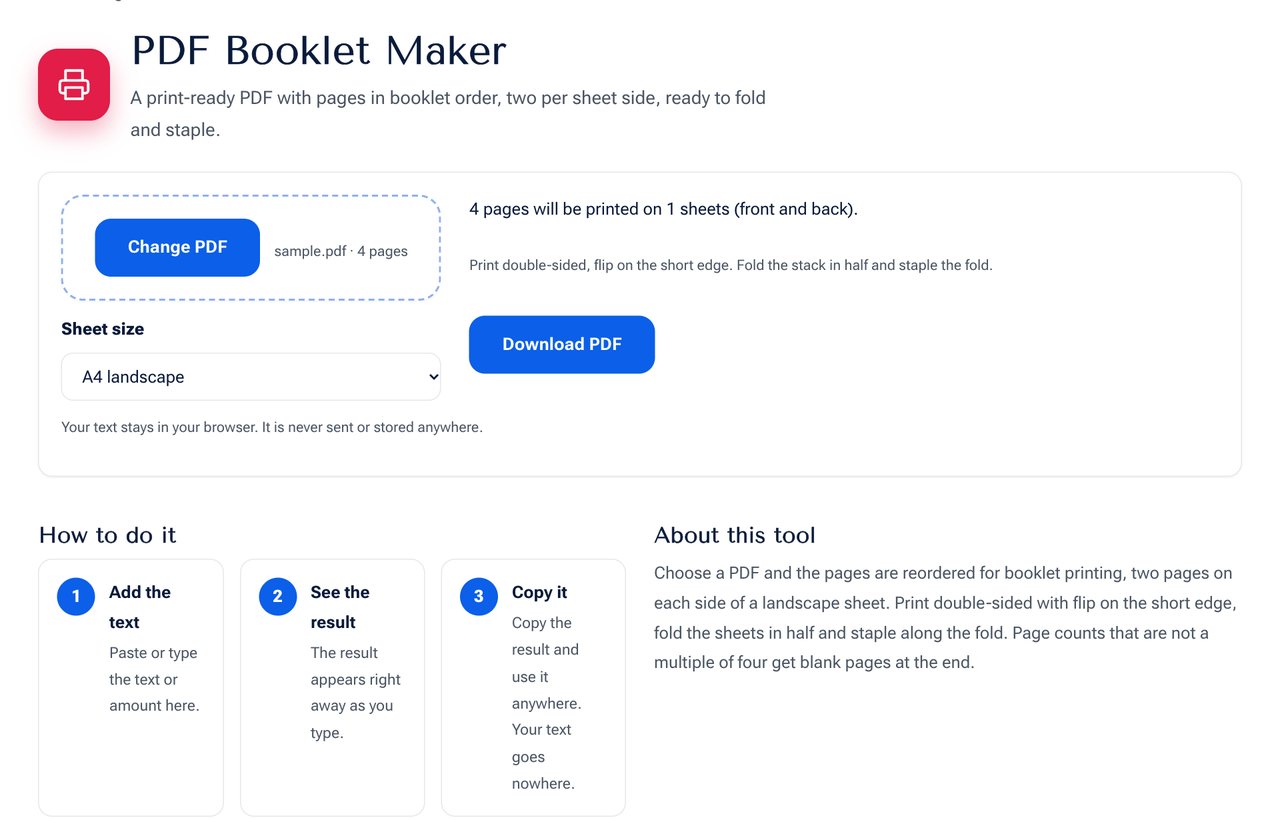 The PDF Booklet Maker tool on shobfree.com, ready to use in your browser.
How the order works
A booklet is made of sheets folded in half. For an 8-page document:
- Sheet 1 front has pages 8 and 1, and its back has pages 2 and 7.
- Sheet 2 front has pages 6 and 3, and its back has pages 4 and 5.
You do not need to remember this, because the tool arranges it for you. If the page count is not a multiple of four, blank pages are added at the end.
Printing steps
- Open the booklet PDF and choose double sided.
- Choose flip on short edge. This is the most common mistake; the wrong choice upside-down prints the backs.
- Print at actual size, not "fit to page".
- Take the stack, fold it in half and press the crease.
- Staple twice along the fold, or sew for a nicer finish.
Tips
- Test with a four-page copy first to check the printer's flip setting.
- Leave a margin of at least 10 mm so the staple does not hide text.
- For thick booklets, print in groups of 4 to 5 sheets and bind the groups together.
- If your printer cannot print double sided, print the odd pages first, turn the stack and print the rest.
Choosing the page size
Landscape A4 sheets fold into A5 pages, which suits most guides and programmes. If your original pages are A4, the tool scales them down to fit half a sheet, so the text becomes about 70 percent of its original size. For comfortable reading, set a body size of 12 points or more in your source document before you make the booklet.
Binding and finishing
For up to about 20 sheets a stapler with a long reach works well. For a neater finish, use a bookbinding clip, a small amount of glue along the spine or a sewn binding. Trim the open edges with a paper cutter if the pages look uneven after folding. A cover of thicker paper makes the result look professional.
Booklet page counts
| Source pages | Sheets of paper | Pages printed |
|---|---|---|
| 8 | 2 | 8 |
| 12 | 3 | 12 |
| 20 | 5 | 20 |
| 22 | 6 | 24 (2 blank) |
Aim for a multiple of four when you design the document, so that no blank pages are needed. A 4-page insert can also be added as a loose sheet.
Common printing problems
If the pages come out upside down on the back, switch between flip on the long edge and the short edge. If margins are cut, check that the print scaling is 100 percent and the paper size matches the file.
Sources and further reading
- Check your printer's manual for its duplex setting names, which differ between brands.
Frequently asked questions
What paper should I use? A4 landscape gives an A5 booklet. Letter landscape gives a half-letter booklet.
Will it change my pages? No. The pages are placed, not edited, and scaled to fit each half.
Can I print only some pages? Yes. Choose the pages in your PDF first with the Extract Pages tool, then make the booklet from the result.
Next step
Make your booklet with the PDF Booklet Maker. You can first tidy the file using the Organize PDF tool.