How to Edit a PDF Online: Change Text, Erase and Add Text for Free
Edit a PDF in your browser: change existing text in place, erase, highlight, add text, shapes, pictures and a signature, with no upload or sign-up.

Sooner or later every PDF needs a small fix: a wrong date, a misspelt name, an old phone number or a line that should not be there. Many people believe this means going back to Word or paying for desktop software. It does not. The free Edit PDF tool on shobfree.com lets you click on the text of a PDF, change it where it stands, erase what you do not need and add new text, shapes, pictures and a signature, all inside your browser. Nothing is uploaded.
Quick answer
Open the Edit PDF tool, choose your file and click on any line of text. Type the new words and press Enter. Use the toolbar to erase, highlight, draw or add text, then press Download PDF.
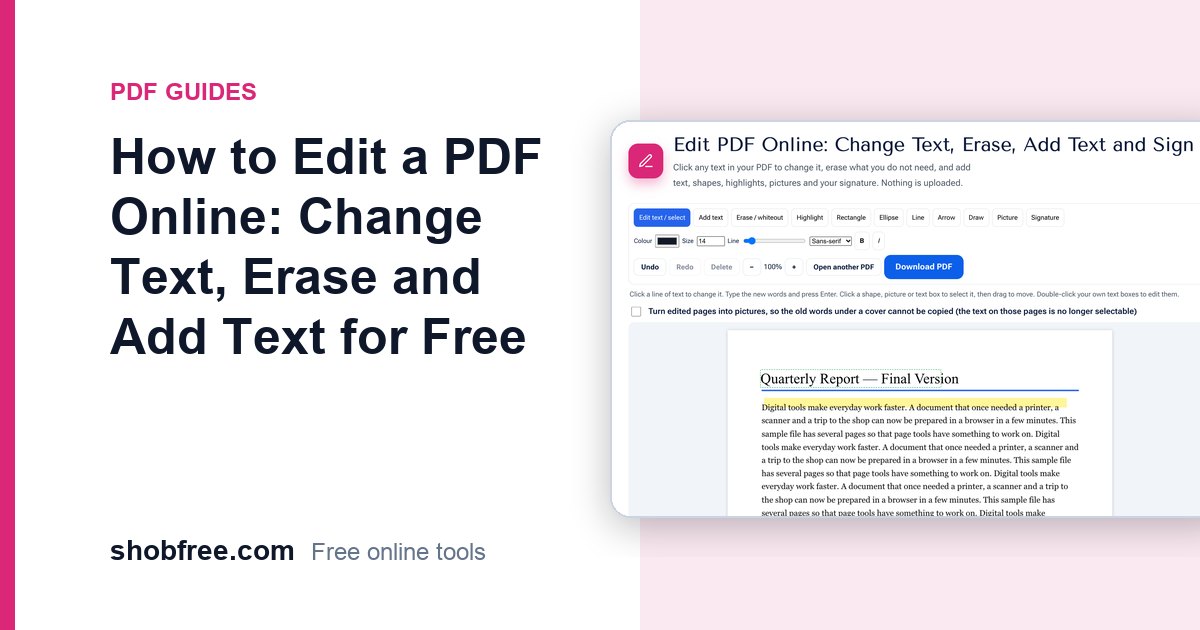
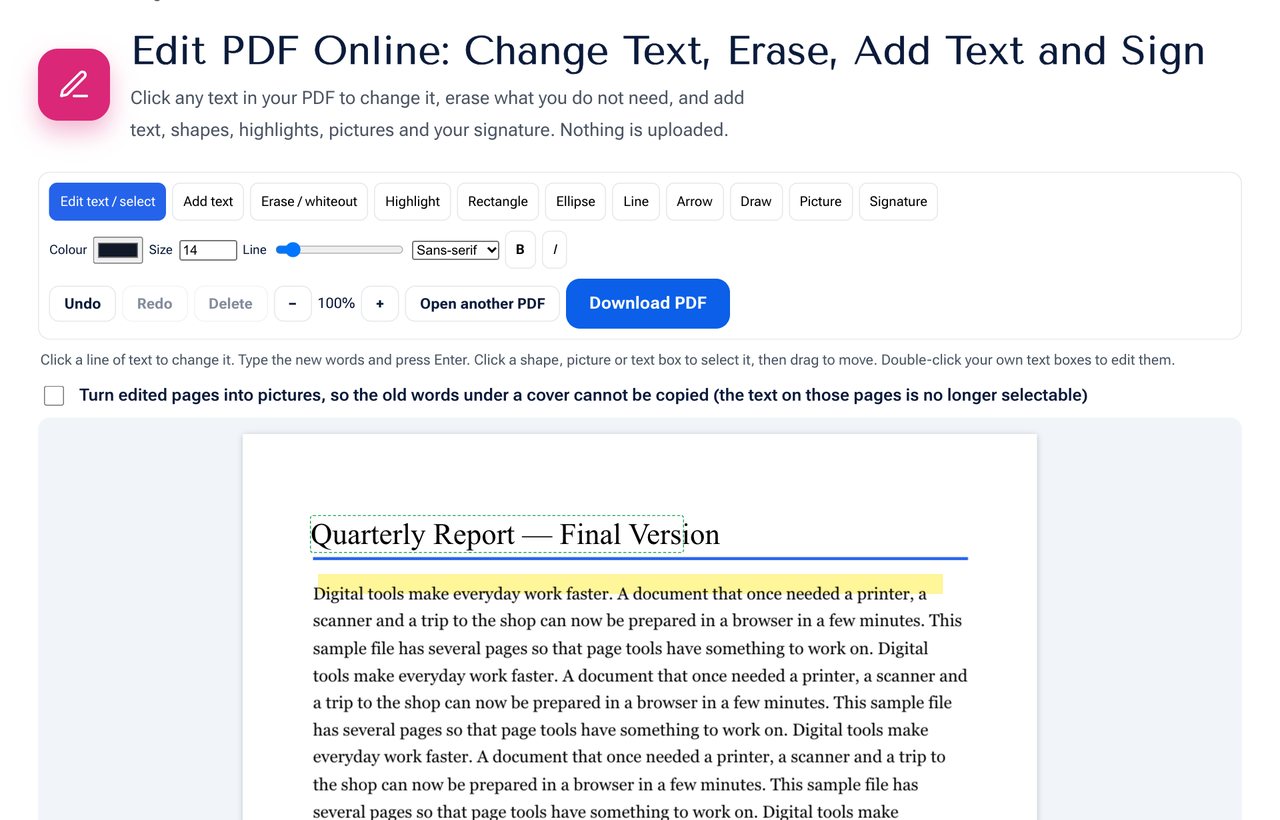 The Edit PDF tool: the heading was changed in place and a line was highlighted.
What you can do
| Tool | What it does |
|---|---|
| Edit text / select | Click a line of existing text and change it where it is. Select, move and delete the things you added. |
| Add text | Click on the page and type new text in any size, colour and font style. |
| Erase / whiteout | Drag a box to cover text or an area with the paper colour. |
| Highlight | Drag over words to highlight them in yellow or another colour. |
| Rectangle, ellipse, line, arrow | Mark up the page with outlines and arrows. |
| Draw | Sketch freely with the mouse or your finger. |
| Picture | Place a logo, stamp or photo on the page. |
| Signature | Draw your signature once and place it where it is needed. |
How to change text that is already in the PDF
- Open the Edit PDF tool and choose your PDF. The pages appear one under another.
- Move the pointer over the text. Each line gets a blue outline when it can be edited.
- Click the line. A small box opens with the current words.
- Type the correction and press Enter. The line shows a green dashed outline to say it was changed.
- Repeat for other lines, then press Download PDF.
The tool matches the size and colour of the original line, and picks a similar font: sans-serif, serif or monospace, with bold or italic when the original had them. The old words are covered with the colour of the paper around them and the new words are written on top.
How to erase or whiteout something
Choose Erase / whiteout and drag a box over the words, a signature or a stain. The box takes the colour of the paper beside it, so on a white page it is white and on a tinted page it matches. If you only want to remove a line of text, you can also click it in the edit mode and delete all the words.
How to add text, a highlight or a signature
- New text: choose Add text, click where it should go and type. Double-click it later to change it.
- Highlight: choose Highlight and drag over the words. The colour darkens the text below instead of hiding it.
- Signature: choose Signature, draw it in the box and click Use signature. It is placed where you click and can be moved by dragging.
Bangla and English
English text uses the standard PDF fonts. Bangla text is drawn by your browser, so vowel signs and conjuncts are shaped correctly, and it is placed on the page as a picture. That means newly typed Bangla looks right but cannot be selected or searched in the saved file. Other scripts such as Arabic or Chinese are not supported for editing in this tool.
What to know before you rely on it
- Covered text can still be there. An overlay hides the old words but does not delete them from the file. If the old words are private, tick the option that turns edited pages into pictures, so nothing can be copied from under the cover. The text on those pages is no longer selectable.
- Scanned PDFs have no text to edit. A scan is a picture. Run OCR PDF first, or use the erase and add text tools on top of the picture.
- Fonts are matched, not identical. If a document uses a special font, the replacement line will use a similar standard font and may look slightly different.
- Lines do not reflow. Each line is edited on its own. A longer sentence will run past the end of the line, so shorten it or split it into two lines.
- Form fields such as text boxes are better filled with the PDF Form Filler.
Is it safe and private?
The PDF is opened and edited on your device with your browser. It is not sent to a server, so contracts, certificates and identity documents stay with you. When you close the tab, the work is gone, so download the result before you leave.
Tips for a clean result
- Zoom in with the plus button for small text.
- Use Undo and Redo, or press Ctrl+Z, if you make a mistake.
- Keep the replacement the same length as the original when possible.
- After you finish, open the saved file and check each edit.
- Keep the original file safe, and save the edited one under a new name.
Frequently asked questions
Can I edit a PDF without Word or Adobe Acrobat? Yes. The Edit PDF tool works in any modern browser on a computer, tablet or phone.
Will the layout of my PDF change? No. Only the lines you change are touched. Everything else stays exactly as it was.
Can I change text in a scanned PDF? Not directly. Make the scan searchable with OCR first, or cover the area and type new text.
Is the old text really removed? It is hidden under a cover. Use the option that turns edited pages into pictures if you need the old words to be unrecoverable.
Is there a page or file size limit? Large files depend on your device's memory. Split a very big file with Split PDF and edit the part you need.
Next step
Open the Edit PDF tool and fix your document in a minute. To sign it as well, see How to Sign a PDF Without Printing, and to reduce its size afterwards use Compress PDF.