How to Create a PDF From Scratch: Flyer, Letterhead, Poster
Design a PDF from a blank page or a flyer, letterhead, poster or notice template, add text, shapes, pictures and a signature, free in your browser.

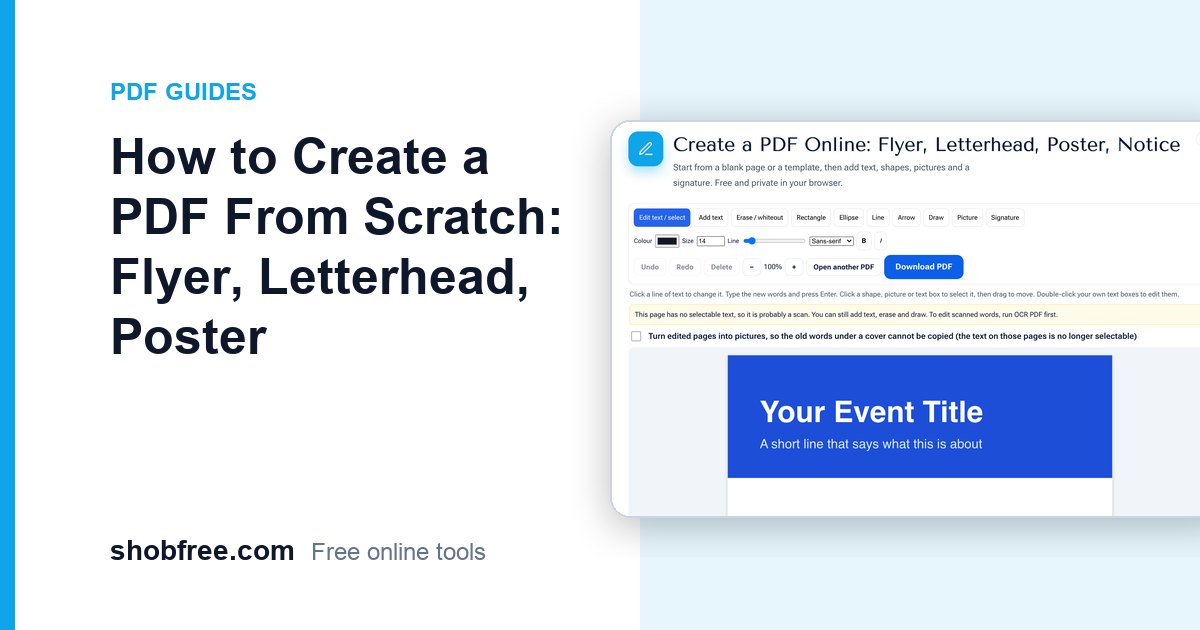
Sometimes there is no file to edit: you need a one-page flyer for a shop, a letterhead for a school, a notice for a notice board or a simple poster. Opening a heavy design program for that is too much. The free Create PDF tool starts you with a blank page or a template and lets you add text, shapes, pictures and a signature, then saves a PDF.
Quick answer
Open Create PDF, choose Blank page, Flyer, Letterhead, Poster or Notice, click the sample text to change it, add what you need and press Download PDF.
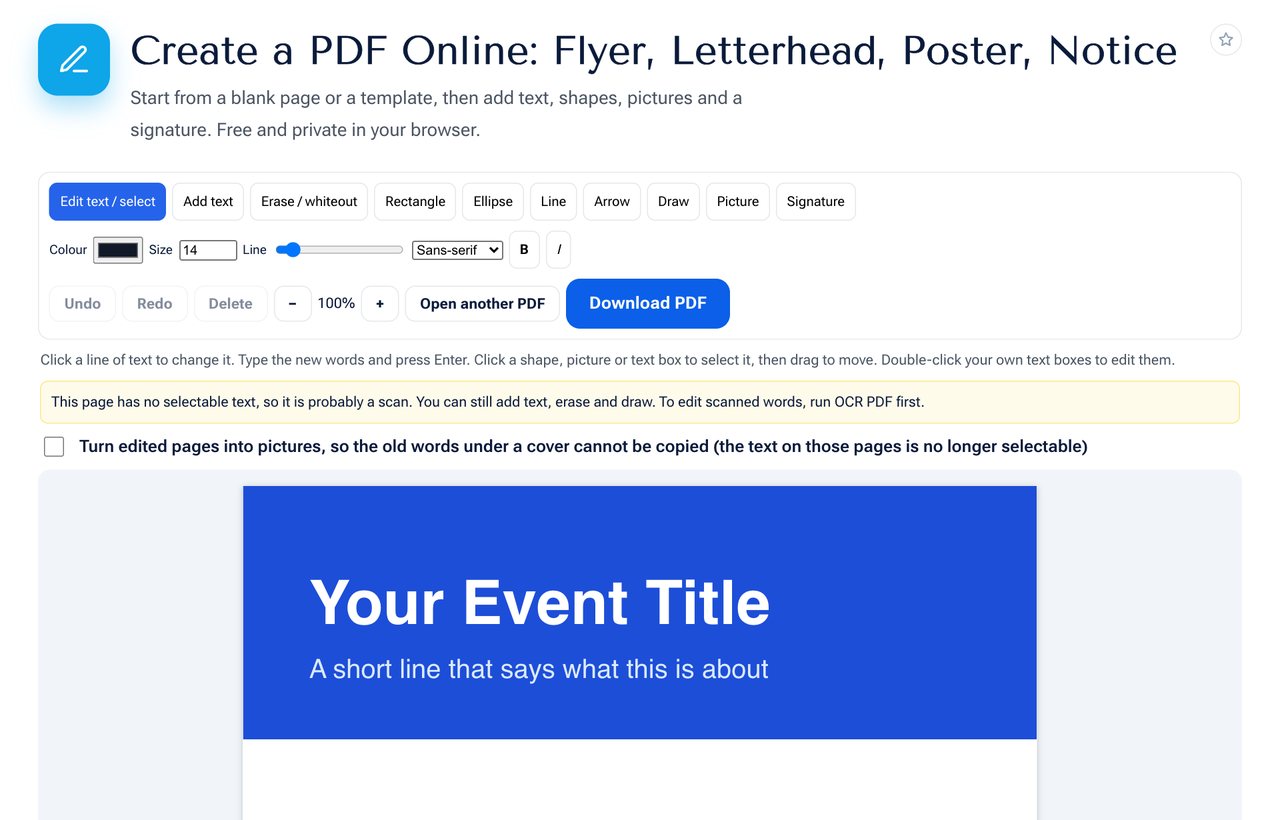 The Flyer template: a coloured header, a title and three points to edit.
The templates
| Template | Good for |
|---|---|
| Blank page | Anything you want to lay out yourself |
| Flyer | Events, offers, classes, shop announcements |
| Letterhead | Letters with the organisation name and address on top |
| Poster | One big message on a dark background |
| Notice | Short official notices with a date and signer |
Choose Landscape page for a wide layout and US Letter size if you print on Letter paper. The default is A4.
Step by step
- Pick a template. The page opens with sample text and shapes already placed.
- With Edit text / select, click a line to change it, or click a shape to move it.
- Use Add text to place new words. Choose size, colour, font style and bold or italic above the page.
- Add shapes (rectangle, ellipse, line, arrow), draw freely, or place a Picture such as a logo.
- Use Signature to add a drawn signature for a letter or a notice.
- Press Download PDF.
Design tips for a clean page
- Keep it to two sizes of text: one large title and one normal body size.
- Leave space. Margins of about 2 centimetres make a page feel organised.
- Use one accent colour. The template colour is easy to change from the colour box.
- Align things. Start lines at the same left edge.
- Check contrast. White text on a dark header is fine; light grey on white is not.
Fonts and Bangla
English text uses clear standard fonts. Bangla text is drawn by your browser with a proper Bangla font and placed on the page, so vowel signs and conjuncts look right. Bangla placed this way is part of the picture, so it cannot be selected in the saved PDF.
After you save
The site offers quick links to continue with the same file: Compress PDF to make it smaller for email, Protect PDF to add a password, or Add Watermark. You can also edit the saved file again with Edit PDF.
Privacy
Your design is made in your browser. Nothing is uploaded, and nothing is kept after you close the page, so download your file before you leave.
Frequently asked questions
Can I make more than one page? The designer works on one page at a time. Create each page and join them with Merge PDF.
Can I open my own PDF in it? Yes. Use the Open a PDF button on the start screen, or use Edit PDF directly.
Is there a watermark on the result? No. The file is clean.
Can I print it? Yes. A4 and US Letter match standard printer paper. Print at 100 percent.
Next step
Open Create PDF and make your first page.